Players who’ve only recently looked for resources to download Zenless Zone Zero will notice that there are way more options available now than when the game first launched! When it initially released, you could only get it on mobile, the HoYoPlay PC client, and PS5. Now, on Windows, besides the official launcher and Epic Games Store, it’s also officially on Steam since June 2026, and Xbox Series X|S has been supported for ages. All platforms—mobile, PC, PS, Xbox—let you bind the same HoYoverse account to save your progress. For players who grind Stamina on their phone during the day then switch to PC or console to tackle tough content at home, the cross-platform experience is super smooth.
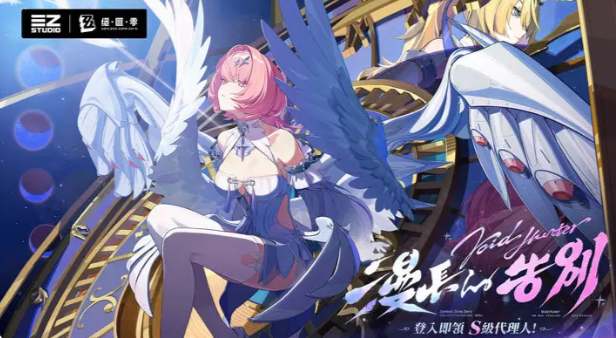
Let’s be real, the current version of Zenless Zone Zero is basically a totally different game from when it first launched in 2024. As of August 2026, it’s up to Version 3.1 "The Long Goodbye". On top of constantly adding new Agents, city districts, and main story quests, they’ve also added long-running game modes like the "Abyssal Maze". Simply put, if you only watched gameplay clips from the era of Ellen, Zhu Yuan, and Hoshimi Miyabi before, you’ll definitely be blown away by how much content there is now after you download Zenless Zone Zero again.
Next, I’ll organize all relevant info from an installation perspective: iOS, Android, HoYoPlay, Steam, Epic, PS5, Xbox, pre-loading, file sizes, account sync, and even emulators. Even new players who’re trying it out for the first time can follow along directly—no need to flip through old guides for different platforms to find what you need.
I. What is Zenless Zone Zero? Game Overview & Platform Guide
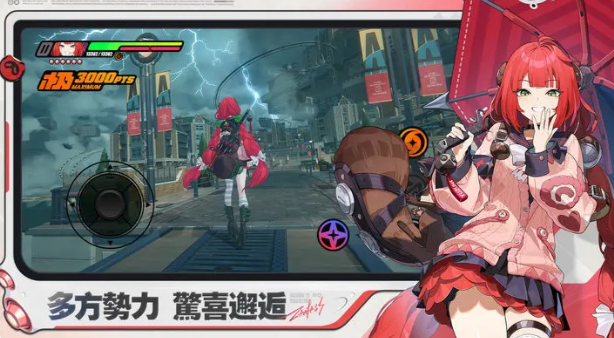
Zenless Zone Zero is a urban-style 3D action RPG developed by HoYoverse. Set in a near-future world, humanity was devastated by the "Hollow" disaster, which almost destroyed the old civilization. Only the last major city, "New Eridu," managed to extract Ether resources from the Hollows and survive.
You won’t be playing as a typical adventurer—instead, you’re a "Wirer," a professional who specializes in navigating the Hollows.
To put it simply, the space inside the Hollows is constantly shifting—regular people would get lost and trapped easily, so Wirers are the ones who guide people venturing into the Hollows and provide them with intel. In New Eridu, you’ll meet various factions like the Cunning Hares, White Key Heavy Industry, Victoria Housekeeping, and the Special Investigation Team, then build a team of three Agents to fight battles.
The combat pace in Zenless Zone Zero is more fast-paced and focused compared to Genshin Impact.
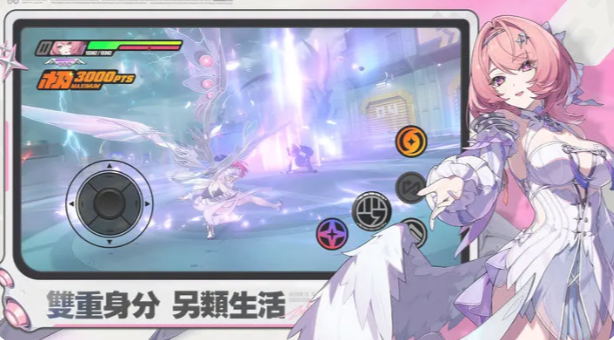
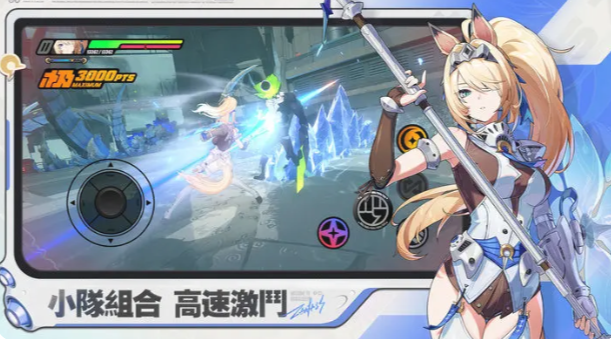
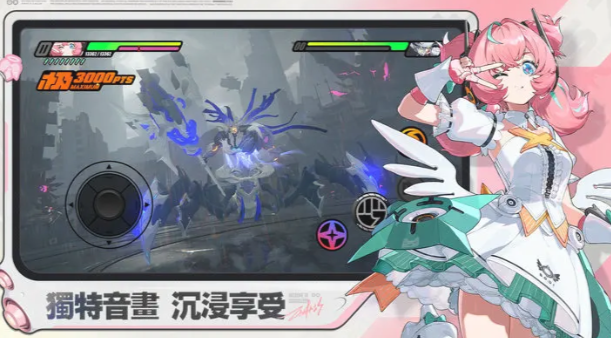
Character actions mainly revolve around normal attacks, Special Skills, Enhanced Special Skills, dodges, Supports, Chain Skills, and Finisher Skills. When enemies are attacked, they build up a "Break Gauge"—once they’re in a "Break" state, you can unleash your Chain Skills and main damage for big bursts. This is the key combat rhythm new players need to learn first.
The main playable platforms right now are:
- iPhone and iPad
- Android phones and tablets
- Windows (HoYoPlay Client)
- Steam
- Epic Games Store
- PlayStation 5 / PS5 Pro
- Xbox Series X|S
The Steam version officially launched on June 16, 2026, and it’s free-to-play now—you just need to link your HoYoverse account to sync progress. The Xbox version supports Xbox Play Anywhere and cloud gaming features.
If you’re wondering "which version should I play right now?", my answer’s clear:
The mobile version is perfect for grinding daily quests and Stamina every day.
The PC version is ideal for long play sessions and handles tough battles easily.
The PS5 and Xbox versions are great for players who prefer using controllers, large screens, and playing on the couch.
II. Zenless Zone Zero Download Methods Overview
A. Mobile (iOS / Android) Download Channels
iOS players just need to open the App Store and search for "Zenless Zone Zero".
Currently, the official Taiwan App Store version is published by COGNOSPHERE PTE. LTD. and supports Traditional Chinese. The initial download size shown on the App Store is around 3.7GB, and you need iOS 14.0 or higher to install it. Just a quick heads up: that 3.7GB is only the App size listed on the store page—you’ll have to download way more extra files the first time you launch the game.
Before downloading all game resources, make sure your internet connection is stable and you have enough storage space on your device.
Android users can just open the Google Play Store, search for Zenless Zone Zero to download the game. The configuration requirements and extra storage space needed for the game will be clearly marked on the app page. It also supports Traditional Chinese, so new players don't have to worry about language issues.
If you can't find Zenless Zone Zero on your iPhone, you can go to Google Play to search for it, and make sure the developer is COGNOSPHERE PTE. LTD. to get the correct version. The official version on Google Play has already been downloaded over 10 million times!
If the game is already available in your local app store, I strongly advise against looking for unofficial APK installation files from other sources.
Zenless Zone Zero will receive long-term content updates, and it has complete account binding, in-game purchase systems, and anti-cheat protection mechanisms. Even if you can barely open the game from an unofficial installation file, you'll likely encounter issues like outdated versions that can't be updated, stolen accounts, or even security risks such as malware being planted on your device.
B. PC / Console Download Channels (Exclusive versions for Steam, Epic, PS5, and Xbox)
Windows users currently have the most download options.
HoYoPlay: Perfect for players who already play HoYoverse games like Genshin Impact and Honkai: Star Rail, since you can manage all your games in one single launcher — super convenient to use!
Steam: The official version launched on June 16, 2026. If all your games are in your Steam library, this is definitely the most straightforward option.
Epic Games Store: The Windows version has been available since the game's early test builds, and it's still being updated steadily — no issues here.
PS5: Add the game to your library for free directly from the PlayStation Store. Just turn on your console and play whenever you want — it's super intuitive.
Xbox Series X|S: You can install it for free from the Microsoft Store, and it supports Xbox Play Anywhere. The game is free-to-play, so you don't need an extra Game Pass subscription to install and play it normally on your console. However, if you want to play via Xbox Cloud Gaming, it depends on the current supported Game Pass plans.
If we just compare PC download channels, my current priority order would be: Steam / HoYoPlay > Epic > Emulators. All three are official Windows versions from the game's developer, so they all work fine. The main difference really depends on which platform you're used to managing your game library on.
III. Complete Guide to Downloading and Installing Zenless Zone Zero Mobile Version
A. Search and Download Steps for App Store and Google Play
For iPhone / iPad Only
The process is super easy — just follow these steps:
- First, open the App Store.
- Enter Zenless Zone Zero in the search bar.
- Make sure the developer is COGNOSPHERE PTE. LTD. — don't download the wrong game with the same name!
- Tap the "Get" button on the screen.
- Complete verification using Face ID, Touch ID, or your Apple ID password.
- Open the game once installation is done.
- Log in to your HoYoverse account.
- Choose the server you want to connect to.
- Finally, wait for the game to download the full resource pack, and you're done!
Although the App Store currently shows the installation size as around 3.7GB, the game actually requires much more storage space than that — make sure you have enough space left on your device.
For Android Devices Only
The steps for Android are actually almost the same as iPhone: Search for Zenless Zone Zero on Google Play → confirm the developer is official COGNOSPHERE PTE. LTD. → tap Install → log in to your account → wait for the full data to finish downloading.
The official minimum Android configuration requirements are: Processor should reach Snapdragon 855, Dimensit
Snapdragon 8 Gen 1 or Kirin 990 or higher, at least 8GB of RAM, and Android 11 or above. This will ensure smoother gameplay.
If you’re using an older mid-range phone with 6GB RAM, even if Google Play says it’s compatible, it won’t run smoothly on high settings during large battles. My advice: start with low or medium graphics when you first launch the game. After 1-2 fights, explore the main areas of New Eridu, make sure your phone isn’t overheating or dropping frames, then gradually crank up the graphics settings.
B. Common Fixes for Download & Installation Failures
When downloading the mobile version, there are 3 common issues—here’s how to fix each one:
First Issue: Store Shows Device Incompatibility
This is rarely the game’s fault. It’s usually because your phone’s CPU, OS version, or RAM doesn’t meet the game’s minimum requirements. Double-check your device specs first.
Second Issue: Full Resources Won’t Download Even Though You Have Space
The “20GB free space” shown on your system doesn’t mean all that’s available for the game. Android and iOS need some space for caching, unzipping, and updates, so it’s best to leave extra room for big games like this—don’t hit exactly the minimum requirement.
Third Issue: Download Stuck at 0% or Suddenly Super Slow
You can switch to a stable Wi-Fi or turn off your VPN temporarily and try again—sometimes it’s just a weak connection. If that doesn’t work, delete the game and re-download it entirely, that usually fixes it.
First, try switching to Wi-Fi or a more stable network and restart the game. If it’s still stuck, clear the game’s download data and re-grab the resource pack. HoYoverse’s official recommendation is also to switch networks first, then clear download data and re-download.
When installing big games like this on mobile, I never recommend “using up every last GB”.
Right now you have a little extra space, but when the next version’s pre-load opens, you’ll definitely get a full red alert from a storage overload.
IV. Zenless Zone Zero PC Version Download & Installation Guide
A. Differences Between HoYoPlay, Steam, and Epic Versions & How to Choose
Right now, there are 3 main official channels to get the PC version.
HoYoPlay
Its main advantage is it’s a native launcher designed by HoYoverse.
If you have Genshin Impact, Honkai: Star Rail, and Zenless Zone Zero on your PC, managing them all in HoYoPlay keeps things neat and organized.
Steam
Its biggest plus is how convenient it is to use.
If you usually have Steam running, you can launch it directly from your library. The Steam version of Zenless Zone Zero requires a linked HoYoverse account, so existing players don’t need to create a new one—just connect your current HoYoverse account.
Steam also lets you see player reviews directly—right now it has a “Very Positive” rating overall, which is great if you want to check what PC players think before playing.
Epic Games Store
The Epic version launched back in 2024, is still updated for version 3.1, and supports cross-platform play just like the others.
Performance-wise, all three versions have the same game performance regardless of which store you get them from.
The real differences are mainly in the launch process, account linking, and which library interface you’re used to.
B. PC Version Installation Steps & Launcher Settings
Here’s how to do it using HoYoPlay as an example:
- Install the HoYoPlay app.
- Log in to your HoYoverse account.
- Find Zenless Zone Zero in the library.
- Choose where to install the game.
- Start downloading the game resources.
- Wait for the download and extraction to finish.
- Click to launch the game.
- Select your game server.
For storage, I highly recommend using an SSD—load times will be way faster.
The minimum PC specs posted by Steam for this game are: Windows 10 64-bit, Intel Core i5 7th gen, 8GB RAM
Memory, and an NVIDIA GTX 970. The recommended specs bump that up to a 10th-gen Intel Core i7 processor paired with an NVIDIA GTX 1660, and Steam requires at least 75GB of free storage space at the moment.
But wait—HoYoPlay needs extra decompression space when updating the game, by the way!
So if your SSD only has like 80GB of free space right now, I wouldn’t even bother trying to install it.
Honestly, you’re way better off reserving 100GB to 120GB of total space minimum.
That way, when big version pre-loads roll around later, you won’t have to delete half your PC’s files just to free up space every single time.
V. Zenless Zone Zero Console Download Guide
A. PS5 Download & Installation Steps
PS5 players just open the PlayStation Store, search for “Zenless Zone Zero” (or 《絕區零》 if you prefer its Chinese name), add it to your library, hit download, and that’s it—installation done!
Right now, the PS5 version is completely free, and it also supports PS5 Pro’s enhanced features, making gameplay even smoother.
Whether you’re a long-time player from the mobile or PC versions, pay extremely close attention to which account you log into when you first launch the game on PS5.
If the screen asks if you want to log into an existing HoYoverse account, pick your existing account if you have any old game progress!
Don’t accidentally skip this step—you’ll run into serious issues later on.
Why? If you make a brand-new HoYoverse account using your PSN ID instead of logging into an existing one, dealing with account unlinking or rebinding later will be way more of a hassle than just picking your old account right now.
One other super important point to note: the region setting on your PSN account!
The game server you get on PlayStation depends on the region linked to your PSN account. For example, if you played on the Asia server on mobile but your PSN account is set to a different region, you’ll get a totally separate save when you log in.
So before you launch the PS5 version for the first time, double-check your PSN region to avoid headaches—it’s the easiest way to prevent problems.
B. Xbox / Game Pass Installation & Notes
Xbox Series X|S players can do the exact same thing: open the Microsoft Store, search for Zenless Zone Zero, click “Get” to start installing. The Xbox Series version also supports console-exclusive automatic updates, so you don’t have to manually check for updates all the time—way more convenient!
Here’s the key info for the Xbox version:
- 100% free to play
- Optimized specifically for Xbox Series X|S consoles
- Supports Xbox Play Anywhere service
- Cross-platform game save sync available
- Can play via Xbox Cloud Gaming service
The Xbox Store page will also directly note information about cloud play and Game Pass subscription support.
When you first launch the game on Xbox, just like with PS5, be extra careful about choosing the right account.
If you’ve been playing on mobile or PC for a long time before switching to Xbox, make sure to select “Log into existing HoYoverse account” when you first open the Xbox version—don’t let the system automatically create a new blank account with your Microsoft ID.
If you do accidentally link the wrong account, you can currently unlink it from your Microsoft ID via the HoYoverse Account Center. However, the official team warns that the number of times you can do this manually is limited, so picking the correct account first is your safest bet.
VI. Zenless Zone Zero Pre-Load & Version Update Cheat Sheet
A. Pre-Load Release Timing & File Sizes Per Platform
First, let’s clear up a common misconception from older guides:
Zenless Zone Zero is now officially in full launch status—this is no longer a public beta test!
This game has been fully launched for ages now, so when people talk about “pre-loading” these days, they’re mainly referring to pre-downloading resources before a new version update goes live.
Take the current Version 3.1 for example: HoYoverse opened pre-loading on July 27, 2026, and officially rolled out the version update on July 29.
The default pre-load file sizes for that version were roughly:
- PC: ~11GB
- Android / iOS: ~7GB
- PS5: ~25GB
- Xbox Series: (info not specified)
Xbox Series X|S Version: ~26GB
It’s totally normal for file sizes to vary across platforms—consoles use different packaging and update methods, plus the number of language packs you install also impacts how much space you need in the end.
For the PC version, you can still play the game normally during preloading—there’s zero impact on your gameplay experience.
The mobile version is a bit trickier though—most of the time, running preload while launching the game will cause some lag. Don’t wait until the last minute before daily quests to hit preload; get the download done early instead.
B. Pre-Update Checklist for Major Version Patches
Every time a major patch drops, I always do these few things first to avoid any issues:
- Double-check your account username and password to avoid verification errors
- Make sure your account is linked to the correct email so you can reset your password later if needed
- Confirm you’re on the right server—don’t accidentally log into the wrong region
- Free up storage space on your device to prevent download or update failures
- Connect to a stable Wi-Fi network—nothing’s worse than wasting time when your download cuts out mid-way
- Mobile users: Fully charge your device before starting, so you don’t run out of battery mid-update
- PC players: Make sure your SSD has at least a few dozen GB of free space left
Oh, and don’t forget that major patches sometimes need to re-unpack a ton of game assets,
so the storage you need is way more than just the download file size—during the update, old and new files will temporarily take up space at the same time, so you need extra room.
That’s why with big HoYoverse games like Zenless Zone Zero, you should never install it on a drive with only like 10GB of free space left—you’ll run into update or gameplay errors super easily.
VII. Zenless Zone Zero System Requirements & Device Recommendations
A. PC Minimum & Recommended Specs
Right now, the Steam page lists these as the minimum requirements for the PC version:
- Windows 10 64-bit OS
- Intel Core i5 7th Gen Processor
- 8GB RAM
- NVIDIA GTX 970 GPU
- DirectX 11 support
- At least 75GB of free storage space
And here are the recommended specs:
- Windows 10 64-bit OS
- Intel Core i7 10th Gen Processor
- 8GB RAM
- NVIDIA GTX 1660 GPU
- At least 75GB of free storage space
It’s highly recommended to install the game on an SSD—load times are way faster than with a traditional HDD.
From my hands-on testing with this urban-themed 3D action game, if I were building a new PC right now, I’d never go with only 8GB of RAM.
16GB of RAM paired with an SSD makes the whole gameplay experience way smoother,
Because let’s be real—when you’re playing, you’re probably running a browser, Discord, Steam, even a recording tool in the background. 8GB of RAM won’t cut it for that.
If you want to run it smoothly at 1080p with high settings and 60FPS, going with a newer GPU like the RTX 3060, 4060, or equivalent will be way more stable than the minimum spec.
B. Mobile Version Storage & Performance Recommendations
These are the official minimum requirements for mobile devices:
iOS: iPhone 8 or later is required, update to the latest iOS version for best stability
Android: Mid-range devices with at least 6GB of RAM, check the full spec list on the storefront for exact details
Wait, the iOS spec actually notes: iPhone XS or later, A12 chip or higher, iOS 14 or later.
Android: Recommended specs: Snapdragon 855, Dimensity 1200, Kirin 990 or better, 8GB RAM+, Android 11 or later.
But keep in mind—these minimum specs are only for “barely playable.” You won’t get the full smooth experience the game is meant for.
If you plan to tackle high-difficulty stages on mobile for the long haul…
Speaking of that, here’s what I actually recommend:
Go for flagship or mid-flagship SoCs released in recent years first.
8GB RAM is just the minimum bar. For a smooth experience, 12GB RAM is way more comfortable and handles multitasking way better.
Also, the cooling environment matters a lot! For example, don’t cover your phone while charging—using a cooling case will make the experience way better.
You don’t need to crank all graphics settings to max just for nice screenshots. A lot of settings barely affect visuals but eat up a ton of performance.
ZZZ has tons of combat effects, frequent quick character swaps, and camera movements. If your phone overheats and throttles, the most annoying thing isn’t worse graphics—it’s your dodge action suddenly dropping frames, making you miss attacks you should’ve dodged.
VIII. ZZZ Installation Size & Storage Management
A. Installation Sizes & Update File Sizes Across Platforms
Storage size is definitely one of the most important things to watch out for when downloading ZZZ. The official Help Center once released these reference numbers:
- PC full installation: ~61GB
- After installation, it’s best to reserve ~122GB of free space for PC (unpacking)
- iOS devices: ~27GB free space needed
- Android devices: ~21GB free space needed
But these numbers change with updates, new voice packs, and other resources. For example, as of 2026, the Steam page already requires 75GB free space. Don’t use old info like "around 60GB" as a fixed standard!
Here’s my personal, real-world recommendation:
Reserve at least 120GB of space for PC.
For mobile, reserve 30GB+ of storage space.
If you plan to install extra multi-language voice packs, add a bit more space to be safe.
B. Freeing Up Space & Tips For Using ZZZ On Multiple Platforms
If your phone is running low on space, start by clearing these first:
Old videos and screenshots on your phone.
Other big games you haven’t touched in ages.
Offline downloaded media.
App cache files (like image caches from social apps).
Extra voice resource packs.
Don’t delete system files randomly—they’re important!
For PC, you can move games on HoYoPlay or Steam to another SSD to avoid filling up your C drive.
If you play ZZZ on both mobile and PC, you don’t need the same number of voice packs on both devices.
For example, keep Japanese and English on PC, and only install your most-used language on mobile—this saves a ton of space.
IX. ZZZ Cross-Platform Accounts & Data Sync
A. HoYoverse Account Linking Guide
The most important thing for cross-platform play is just one:
Make sure all devices are logged into the same HoYoverse account.
In-game, go to:
Settings → Account → User Center
Double-check that your account is linked to your email, third-party accounts, and that all security info is set up properly.
HoYoverse currently officially supports cross-save for ZZZ across PC, iOS, Android, PlayStation, and Xbox—meaning your data can be synced between all these devices.
Personally, I recommend linking your regular email directly to your HoYoverse account and setting a strong password—that’s safer.
Here’s why: Google login and registering a HoYoverse account with a Gmail address aren’t always the same, and Apple login/Game Center are separate too.
A lot of players lose their character progress when switching devices—not because their account got deleted, but because they logged in the wrong way.
B. Cross-Platform Progress Sync Between Mobile & PC/Console
Let’s say you’ve reached Chapter 6 on your Android.
When you get home to PC, just do:
Download the PC version → Log into the same HoYoverse account → Pick the same server.
Your progress will pick right up.
Same for PS5 and Xbox, but be extra careful when linking your account for the first time.
Server data can’t be transferred between regions, and the main regions right now are:
Asia.
Europe.
Americas.
Erica.
TW, HK, MO.
There’s no "help move my characters to Asia" function if you pick the wrong server.
Taiwanese players can generally consider the Asia server or TW, HK, MO servers, but if you want to play with friends, it’s recommended to confirm each other’s servers in advance.
If your friends have already joined a specific server, playing together on that server is a better choice.
X. Zenless Zone Zero Emulator Download and Multi-Instance Reroll Guide
A. BlueStacks / LDPlayer Installation & Settings
Since Zenless Zone Zero released its native PC version, I actually don’t recommend installing an Android emulator just for regular gameplay experience.
However, if you need to test the Android environment or manage multiple mobile accounts at the same time, you can use common third-party Android emulators like BlueStacks or LDPlayer.
It’s recommended to adjust the basic settings of the emulator starting with the following parameters:
Use 64-bit Android environment
Set CPU configuration to 4 cores
Allocate around 6GB to 8GB of RAM to the emulator
Set resolution to 1920×1080
Set frame rate to 60FPS
Once adjusted, you can start testing the running status.
If you encounter issues with DirectX in the display options, switch to OpenGL to test; if OpenGL has frame drops, switch back to DirectX.
However, since emulators are third-party environments, compatibility may not be as stable as the native Windows client after each game version update.
If you just want to experience keyboard and mouse controls:
Just play directly on Steam or HoYoPlay platform
You don’t need to go through the extra step of installing an Android emulator at all.
B. Multi-Instance Reroll and Sync Tool Tips
If your only goal is rerolling for the best start, using multi-instance does save time on waiting repeatedly, but I don’t recommend opening more than 10 emulator instances at once.
Generally, a PC with 16GB of RAM will easily run out of memory if you run too many Zenless Zone Zero instances at the same time.
A more reasonable approach is:
Create 2 to 3 64-bit emulator instances first
Lower the resolution a bit
Set all graphics settings to the lowest
Limit frame rate to 30FPS
Turn off game sounds
Only run the tutorial and gacha pull process
Once you confirm the account you want to keep, go back to the official PC or mobile version to play the game properly.
For the so-called "sync tool", it’s also recommended to only use it for clicking basic interfaces of the game at the same time.
Never use auto-scripts, macros, or other third-party tools that automate game operations. After all, your main account is for long-term play, so I’d stick to the native client for that.
Also, rerolling for Zenless Zone Zero takes a decent amount of time, so if you don’t specifically need a certain permanent S-rank character, I actually recommend just starting the game normally.
The value of a long-term account mainly comes from limited-time characters and resource accumulation, not from that first pull on day one.
XI. Zenless Zone Zero Download Common Issues and Error Code List
A. Solutions for Slow Download / Stuck Preloading
When the download on PC gets stuck, don’t rush to delete all files first.
You can try the following steps:
Restart the HoYoPlay platform
Switch your network
Pause the download and then resume it
Make sure your SSD has enough free storage space
Restart your PC
Only after that, consider deleting the downloaded resources
If it gets stuck at the extraction stage, wait patiently for a while first.
Sometimes the progress bar looks like it’s not moving, but the hard drive is actually doing a lot of read/write operations.
Common extraction error codes from HoYoverse include:
6011-x-x
2002-x-x
8002-x-x
These error codes are usually related to corrupted/incomplete download files, storage location, permissions, or network conditions. The official advice is to restart the platform, switch storage disks, change networks, then re-download the corrupted files.
If your antivirus software accidentally quarantined some game files, that might be why the extraction keeps failing.
When this happens, first confirm the files are from the official client, then check your antivirus’ quarantine log.
B. Server Region Restrictions and Login Issue Fixes
If you suddenly log into a new account after signing in, the first thing to check is:
Server
Next, check:
Login Method
Especially for Google logins, email logins, Apple logins, and Game Center logins—even if they look like they use the same email, they might not link to the same account at the system level.
PS5 users, you also need to double-check your PSN region settings.
Xbox users, make sure your Microsoft account was correctly linked to your HoYoverse account the first time you logged in.
If you only get an error like “Server connection timed out”, you can also check your network status and the server status first.
If you get “out” connection errors (like timeouts), try switching to a different network or turning off VPN/proxy tools first.
Don’t think you have to restart the server just because you’re in Japan, Taiwan, or another region.
Right now, HoYoverse doesn’t offer server transfer services, but you can still log into your original server to play even if you’re traveling abroad.
XII. Zenless Zone Zero New Player Tips & Must-Do’s After Downloading
A. First Login & Settings Recommendations
After you finish downloading Zenless Zone Zero, don’t rush to max out all the graphics settings right away.
Mobile players, here’s the recommended setup: Turn on 60FPS first; set shadows to medium or low; adjust effects to medium; keep render resolution at medium for now; and for motion blur, turn it off if it messes up your gameplay (it’s up to you).
After setting up, play through some main story quests to test how your phone heats up. If there’s no overheating or frame drops, you can gradually crank up the graphics later—no rush.
PC players, start with 60FPS or whatever higher FPS your device can handle; use your screen’s native resolution; then tweak shadow and effect levels.
Personally, I care more about consistent FPS during battles than turning on all Ultra settings. After all, Zenless Zone Zero’s late-game hard content requires precise dodges, perfect assists, and quick calls on enemy moves.
A slightly blurry screen is manageable, but if your FPS drops from 60 to 25 mid-battle, your gameplay will definitely suffer.
B. Post-Download Package Updates & Day 1 Plan
When you first jump into the game on Day 1, follow these steps: First, link your account—this is the most important step, no exceptions.
Next, push through the main story. Don’t waste 2 hours running around the map—most features unlock along with your Syndicate Rank and main story progress.
Once you hit the daily system in the main story, start unlocking daily-related features. Next, get familiar with the game’s “Energy” system (the Stamina system).
Early-game, prioritize using Stamina to level up your main DPS (carry), plus get materials for W-Engines and skills. Don’t grind for perfect Drive Disc substats right away—that’s a total Stamina waste.
When your characters aren’t leveled up yet, spending tons of Stamina on crit substats isn’t worth it. My early-game progression priority is: Main DPS level up → Core skill enhancement → W-Engine setup → Teammate level up → Drive Disc main stat matching → Substat fine-tuning.
For the gacha part: When you see the standard banner, don’t rush to trade all your Phillips for Standard Tapes—save your Phillips for limited agent banners. You can collect Standard Tapes slowly from quests, events, and level rewards.
If there’s an event happening, don’t just grind main story and miss all event content—right now, Version 3.1 has anniversary-related rewards, and new players can unlock part of the event as long as they hit a basic Syndicate Rank and finish the prologue.
One last important thing: Test the characters! Every character in Zenless Zone Zero plays super differently. Some main DPS need charged attacks, some deal damage via dodge counters, some focus on stacking anomaly effects, and others blow up during Break periods.
So don’t just pull a T0 character because of tier lists—play through the trial stages first. The characters you enjoy using will be the ones you stick with long-term.
Let’s Sum It Up
Overall, right now
Zenless Zone Zero download is way more convenient than when it first launched. Mobile users can grab it directly from App Store and Google Play; for Windows, you can now get it not just via HoYoPlay and Epic, but also Steam; for consoles, both PS5 and Xbox Series X|S versions are available. What’s more, PC, Android, iOS, PlayStation and Xbox all support the same HoYoverse account to sync your game progress.
If you ask me which platform to pick, I’d definitely go for the official PC version. Not because it gives extra characters or benefits, but because Zenless Zone Zero is essentially an action game. When you’re fighting bosses, in Crisis Striker or other high-difficulty content later on, the big screen, stable frame rate, and keyboard and mouse or controller controls are way more comfortable.
The mobile version is perfect for dailies like spending Stamina, doing daily commissions and joining events. Using both platforms is actually the most natural way to play.
If you plan to play long-term, I’d reserve over 30GB of space on your phone, and 100GB to 120GB on PC—this saves you the hassle of clearing space every time an update hits.
Every version update automatically deletes backup files from the old version, so keep that in mind!
Account sync settings—get this sorted on your first day in the game, don’t leave it for later!
Key note: You MUST use the same HoYoverse account and bind to the same server! Whether you’re switching from mobile to PC, PS5 or Xbox, as long as these two conditions are met, you’ll see your original Agent progress. Especially when connecting your PlayStation or Xbox account for the first time—don’t just spam skip every screen! If you accidentally link the wrong account, fixing it later is way more trouble than choosing the right account from the start.
As for emulators, I only recommend using them now for special Android device testing, or a small number of pulls for new accounts. For actual play, platforms like Steam, HoYoPlay or Epic are way better—Zenless Zone Zero already has a full native PC version, so using an emulator adds an extra layer of performance drain, which is totally unnecessary.
After new players finish Zenless Zone Zero download, don’t rush to blow through the main story. Take your time to push the main quest, unlock daily commissions, understand the roles of your three-person team: Attack, Anomaly, Stun, Support, and then slowly work on Drive Disc builds. The easiest trap to fall into early on isn’t not having enough characters—it’s wasting Polychrome on the standard banner, or spending all your Stamina on inefficient gear, only to regret missing materials when you actually need to level up your main DPS.
What draws me most to Zenless Zone Zero is how naturally it blends "urban daily life" and "high-speed action RPG"—one minute you might be wandering in New Eridu, shopping, taking photos, taking commissions, and the next second you’re diving into a Hollow to dodge continuously, activate Ultimate Support, break enemy imbalance, and use a combo skill to one-shot the boss! As long as your device can run it and you like this kind of action RPG, getting into the game now via mobile, PC or console is way easier than ever.