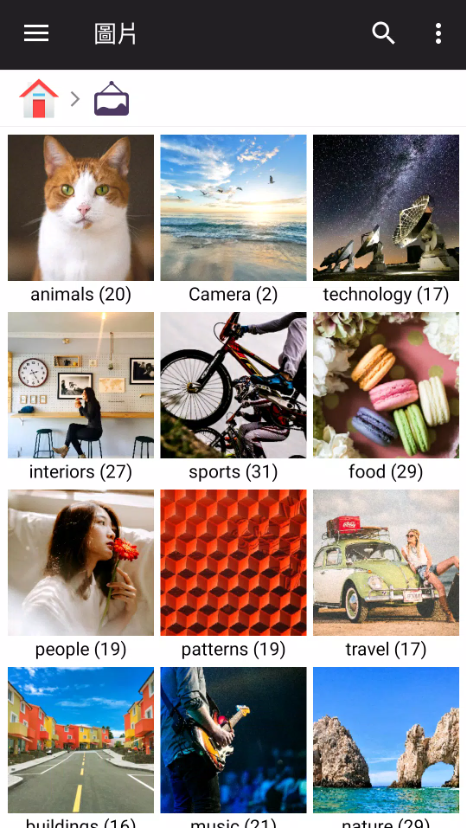
After using your phone for a while, the most frustrating thing isn't running out of storage space—it's the moment when you *know* you downloaded a file, but can’t for the life of you find it anywhere. Photos get scattered across random folders, files from LINE or other messaging apps leave no trace, work PDFs mix with personal pictures, and over time, your phone’s storage becomes like a messy room: everything’s there, but you can’t put your finger on exactly where.
That’s when a file manager app really comes in handy.
Most Android phones come with basic file management pre-installed, and iPhones/iPads have Apple’s official “Files” app. But when you need to do things like batch move files, zip/unzip archives, connect to NAS, integrate FTP/SMB protocols, link cloud drives, use dual-pane interface, or deep storage analysis, built-in tools quickly show their limitations.
When testing file management tools, I don’t just look at how many features they have. The core things that matter most are three things: how fast it can find your files, whether moving files is error-free, and whether you can trust its permissions.
Now let’s look at some still-popular file management tools in 2026: Files by Google, Cx File Explorer, Total Commander, Solid Explorer, Simple File Manager, and File Manager Plus. We’ll cover their download experience, how smooth they are to use, security permission design, and which ones we recommend for different needs.
I. Introduction and Overview of File Manager Apps
A. Definition and Use Cases of File Manager Apps
Simply put, a file manager app is like your phone’s personal “File Explorer”.
If you’ve used Windows File Explorer or Mac Finder before, this app is pretty similar in concept. It lets you browse your phone’s internal storage, Download folder, photos, videos, music, documents, APK apps, and even SD card content directly.
Basic features usually include: file copy, move, rename, delete, create folder, search, sort, and file sharing.
More feature-rich third-party apps also add useful extras like ZIP compression/decompression, NAS network storage connection, SMB/FTP/SFTP protocol integration, WebDAV, cloud drive connections (Google Drive, Dropbox, OneDrive), duplicate file analysis, and even encrypted folders.
So if you only need to find a PDF occasionally, your built-in tool is usually enough. But if you’re organizing work files, downloading videos, backing up photos, or connecting to NAS storage every day, the difference a third-party file manager makes is immediately noticeable.
B. Built-in vs Third-Party File Manager Apps: What’s the Difference?
Almost all Android phones come with a pre-installed file manager, like Samsung’s “My Files” and Google Pixel’s Files by Google. Every brand has their own built-in file tool too.
The biggest pros of built-in apps are that they’re secure, easy to use, better integrated with your phone’s system, and more stable.
But they have a common downside: they’re less flexible for advanced features.
For things like dual-pane view, SFTP protocol, WebDAV, batch renaming, NAS mounting, and FTP server setup, third-party tools like Solid Explorer, Total Commander, and Cx are way more powerful and user-friendly.
My advice is simple: if you’re just organizing photos and downloads, stick with your built-in app. But when you need to manage large files, NAS, or cloud storage, then it’s time to switch to a third-party file manager app.
II. Android File Manager App Ranking & Recommendations
A. Popular File Manager Apps
Based on their 2026 feature completeness, ease of use, and long-term maintenance track record on Google Play, I’ve broadly categorized these tools below:
1. Files by Google — Best for Average Users
It has the simplest, most intuitive interface. Finding files, sorting them, deleting junk, sharing files, and the secure folder feature are all super easy to master — plus there’s zero ad interference. Google Pl
2. Cx File Explorer — Clean Interface With More Features Than Stock Options
Its biggest highlight is its clear, easy-to-read interface, plus it comes built-in with a bunch of useful features like NAS connection, FTP transfer, cloud access, and storage space analysis. It holds a ~4.8-star rating on Google Play and has already crossed 10 million downloads.
3. Solid Explorer — Top Pick for Advanced Users
It has dual-panel operation, supports network protocols like SMB/SFTP/FTP, WebDAV cloud storage, and strong AES-256 encryption. It’s packed with solid, robust features — a go-to for power users.
4. Total Commander — Classic Route With Serious Power
If you’ve used Total Commander on your PC before, the Android version’s workflow will feel super familiar to you. It sticks to a no-nonsense, classic design, supports text search, multiple compression formats, plugin expansions, and even Root-related file operations — it’s extremely comprehensive.
5. File Manager Plus — Closest to Traditional File Explorers
Its interface is almost identical to the classic file explorers you use on PCs. With over 100 million downloads on Google Play, it’s perfect for users who don’t want to spend time re-learning a new workflow.
6. Simple File Manager — Lightweight Alternative
It has basic features like file search, copy/paste/move, compression/decompression, renaming, and storage analysis. Steps are uncomplicated — great for users who just want to organize their phone files easily.
B. Core Feature Comparison of File Manager Apps
Here’s a quick one-sentence breakdown of each app’s focus:
Files by Google stands out for being super simple and easy to use.
Cx File Explorer is known for its clean interface and perfect balance of advanced features.
Solid Explorer offers professional-level file management skills.
Total Commander focuses on workflow flexibility and customizability.
File Manager Plus delivers the most familiar feel of a classic PC file explorer.
Simple File Manager is ideal for situations where you want something that works right out of the box, no extra learning needed.
So there’s no absolute best file manager — it all comes down to matching its features to your actual needs.
III. In-Depth Reviews of Popular File Manager Apps
A. Files by Google Feature Deep Dive
If a friend asks me, “Which Android file manager is the most hassle-free?”
The first app I recommend is almost always Files by Google.
It doesn’t flood you with tons of cluttered system folders right when you open it — instead, it automatically sorts photos, videos, documents, downloads, and other files into organized categories. The interface is super clean and easy for regular users to pick up.
Another super handy feature is its “Storage Cleanup” tool.
It proactively flags large files, duplicate content, and junk files you can delete to free up space. Google also adds extra perks like PIN/pattern lock for protecting sensitive files, offline media playback, and cloud backup. The app itself is less than 20MB when installed — it won’t take up too much of your phone’s storage.
But it has some clear downsides.
If you’re a heavy NAS (network-attached storage) user, Files by Google’s network file management capabilities aren’t as powerful as Solid Explorer or Cx File Explorer.
B. Comparing Cx File Explorer and Total Commander
Cx File Explorer is perfect for people who find Files by Google too limited in features but don’t want to use something overly complicated.
Its homepage directly shows your phone’s internal storage, SD card, downloaded files, apps, trash bin, and storage space analysis. Switch to the Network tab, and you can manage network storage like NAS or FTP.
You can even use FTP to let your computer access files on your phone directly — super convenient.
The 2026 version is still being updated, and it added features to clean junk files, duplicate files, and unused apps, making it even more useful.
Total Commander takes a totally different approach.
Its interface isn’t as sleek as Cx’s, but it has full-featured tools like copy, move, compress, extract, search, text editing, bookmarks, and even plugin extensions. As of 2026, it still has over 10 million downloads on Google Play.
My recommendation:
For regular daily use, Cx is the right pick.
If you like being in total control of every folder, file path, and operation detail, Total Commander is the better choice.
C. Simple File Manager vs. File Manager
The current version of Simple File Manager on Google Play has basic functions like file search, copy, paste, cut, delete, rename, extract, transfer, and storage analysis, with over 5 million total downloads.
The biggest advantage of this tool is its low entry barrier — even total newbies to file management can get the hang of it quickly without spending a lot of time learning the operation logic.
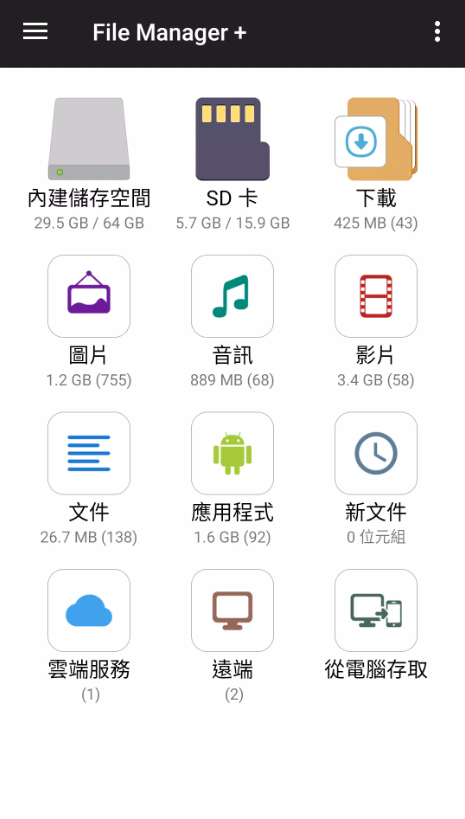
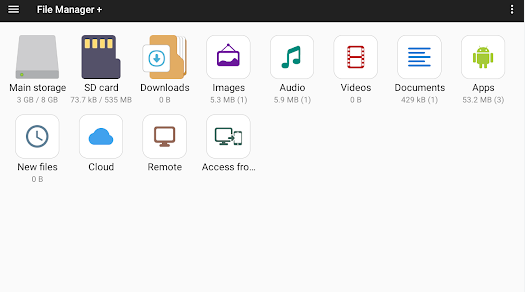
File Manager Plus is a more mature option, with over 100 million downloads so far. Beyond managing files on internal memory and SD cards, it supports USB OTG, NAS devices, and even integrates cloud storage services like Google Drive and Dropbox — it has way more features than the basic version.
For seniors or users who aren’t familiar with the Android file system, I’d actually prioritize recommending File Manager Plus. Its intuitive interface is quite user-friendly.
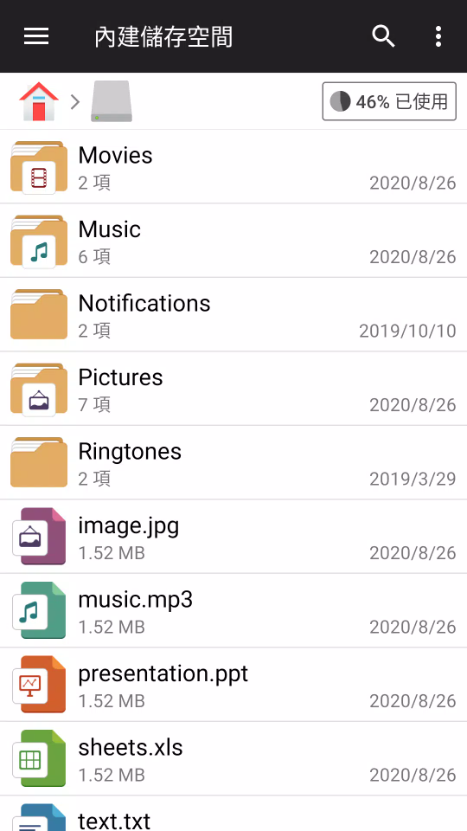
The reason is simple: its homepage is directly organized into major categories like “Main Storage, Downloads, Images, Music, Videos”. You don’t need to understand the complicated underlying directory structure of Android at all — you can find the files you need easily without extra effort.
IV. Guide to Downloading and Installing File Manager Apps
A. Download Steps on Google Play
The safest way to install apps on Android devices is still the official Google Play Store, which greatly reduces the risk of malware.
After opening Google Play, enter the full name of the app in the search bar. For example:
Files by Google
Cx File Explorer
Solid Explorer File Manager
Total Commander
File Manager Plus
When you find the target app, don’t rush to click “Install” — first check the developer information.
Names like “File Manager” (including Chinese terms), “檔案管理器” (file manager), and “File Explorer” are very common, so search results often have dozens of apps with highly similar looks; it’s easy to download the wrong version by accident.
After confirming the developer info, total downloads, latest update time, and privacy policy, then click install. This will make your usage experience more stable and secure.
B. Download Steps on App Store
The situation for iPhone and iPad is different from Android.
Apple has a built-in “Files” app, plus iOS has much stricter permission limits for the file system than Android. That’s why many well-known file managers for Android don’t even have iOS versions.
When searching for third-party file managers on the App Store, never assume it’s the same company just because the name is identical — it’s safer to check the developer first.
If you only need to manage iCloud Drive, local files, downloads, or external storage devices,
I usually recommend prioritizing Apple’s built-in “Files” app — it’s more than enough for everyday needs.
If you actually need third-party tools, opt for apps on the App Store that have clear developer info and are updated regularly over time — this helps you avoid old, outdated apps that no longer get maintained.
C. APK Installation Method
You can also manually install apps on Android devices via APK files, which is useful for tools that aren’t available on official app stores.
The typical process is: first, get the APK file you want to install, then go to your system settings to grant a specific browser or file manager the permission to install unknown apps, and finally tap the APK file to finish the installation.
But I don’t recommend that regular users download so-called “File Manager App Pro cracked versions” randomly — these untrusted files carry hidden risks.
File managers themselves request very broad storage permissions to access most of the data on your device, making them apps with high permission requirements.
If you give these highly sensitive permissions to a modified APK from an unknown source at this point, photos, work documents, downloaded files, and even backup files on your phone could leak or be maliciously stolen — the consequences would be disastrous.
V. Core Features of File Management Apps
A. File Browsing & Search Features
A good file manager isn’t just about showing a folder structure — what matters most is that it lets users quickly find what they need, which is the key to telling high-quality ones apart from the rest.
For example, if you get a PDF but can’t remember which folder it’s in, the fastest way isn’t rummaging through 10 folders one by one. Instead, just search for the “.pdf” file extension and sort by date — you’ll find it in no time and save tons of time.
The same goes for images — no need to scroll manually through your photo album.
If you have 20,000 photos on your phone, scrolling through the DCIM folder one by one is a total waste of time. Leveraging sorting, search, and date-order features lets you save precious time and boost productivity.
B. File Compression & Transfer Features
ZIP compression is a super useful feature in third-party file managers — you’ll use it a lot in daily life.
For example, if I need to send a dozen documents via email, I won’t attach each one manually. Instead, I’ll compress the entire folder into a ZIP file first — it’s way easier and avoids failed transfers from too many attachments.
Solid Explorer, Total Commander, Cx, and File Manager Plus all handle various compression and decompression tasks, supporting common archive formats.
Some even support other common formats like 7ZIP, RAR, and TAR, so they can handle different use cases.
If you often download assets, game mods, or work files from the web, this feature is a huge help — no need to install separate compression software.
C. Cloud Integration & Storage
Cloud integration is an increasingly key core feature of modern file managers. It lets you manage cloud files from different platforms in one place without switching apps — making cross-device use way more convenient.
A good file manager connects to multiple cloud services at once — for example, Google Drive, Dropbox, OneDrive, and even your company’s internal NAS device — all in a single interface. No need to log into multiple accounts separately, cutting down on extra steps.
For users who need to access files across devices, this saves a lot of login and switching time, and helps you avoid missing important files — making file management way easier.
Regular Cleaning
Today’s really good file managers go way beyond just managing files on your phone.
Take Solid Explorer, for example — it supports not just popular cloud services like Google Drive, OneDrive, and Dropbox, but also various network protocols. It brings local phone files, network storage like NAS, and cloud space all together in one single interface for unified management.
Cx also handles local computer, mobile, and cloud files well, making it ideal for users who need cross-device management.
Files by Google, on the other hand, focuses more on phone storage cleaning — it helps you easily find unnecessary duplicate files and cache to free up space.
As for which one to pick? It mostly depends on where you store your files. Just go for the app with strong support for your storage needs.
VI. Dual-Panel & Advanced File Management Features
A. Solid Explorer Dual-Panel Operation
Dual-Panel Interface is Solid Explorer’s most recognizable feature, and one of the reasons it’s so loved by power users.
When moving files with a regular file manager app, the process is usually pretty tedious: select the files you want to move, tap "Cut", go back to the parent folder, manually find the target folder, then finally tap "Paste" to finish.
But Solid Explorer’s dual-panel design lets you open two different storage locations at the same time—no need to switch folders repeatedly.
For example, switch the left panel to your phone’s Downloads folder, and connect the right panel to your NAS or SD card. To move files, just drag them from left to right with your finger or mouse—super intuitive and fast.
The version of Solid Explorer available on Google Play, in addition to its dual-panel (dual-pane) feature, supports multiple network protocols like SMB, SFTP, FTP, WebDAV, integrates with all major cloud storage services, offers strong AES-256 encryption protection, and includes useful advanced features like batch renaming and storage space analysis.
If your phone or tablet is a tool for handling work files, the efficiency boost from this dual-panel design will be really noticeable—it cuts down on repetitive tasks a lot.
B. Network & Local Storage Management
More and more people are setting up NAS (Network-Attached Storage) devices at home these days, to store important photos, videos, work docs, etc., which solves the problem of not enough space on your phone or computer.
NAS devices from brands like Synology and QNAP, shared folders on Windows PCs, even shared locations on Mac systems—all can connect to your file manager app via common network protocols like SMB, FTP, or SFTP.
This is where an advanced file manager really shines: you don’t need to install separate apps for each NAS brand—you can connect and manage different network storage locations all in one place, no more jumping between apps.
For example, once you set up your NAS connection in Solid Explorer, you can browse and organize all files on your NAS just like you’re checking your phone’s built-in folders—same intuitive experience as managing local files.
One important note: when setting up your network storage connection for the first time, use the local network IP assigned by your NAS, paired with a non-admin user account that has a strong password. Never use your NAS admin account details for every app—this avoids security risks from overly high account permissions.
VII. File Manager App Privacy & Security
A. File Manager Permission Settings Explained
File manager apps are among the apps that require higher permissions, mainly because they need access to all sorts of files on your phone to offer full functions like managing, moving, zipping, etc.
Right now, Android uses the Scoped Storage framework—a system designed to protect user privacy: most third-party apps shouldn’t get unrestricted access to all files, only data within their scope, to prevent privacy leaks.
However, apps that are truly built around "file management" as their core function are eligible to apply to Google for the special "Manage All Files" permission, per system rules, to offer full file management features.
Android officials also explicitly list file manager apps as one of the app types that "reasonably need the MANAGE_EXTERNAL_STORAGE permission", ensuring these tools work properly without overly strict system restrictions.
But keep in mind: even with this special permission, apps can’t access other apps’ private directories at will. Android still keeps access restrictions on sensitive folders like Android/data to protect user data.
This also explains why some file managers can’t open the Android/data folder sometimes—it’s not always that the app is bad; more often than not, it’s due to an update to Android’s permission policies, not the app itself.
B. Tips for Choosing a Safe & Trustworthy App
When I pick a file management tool for myself, I usually prioritize checking…
Check these five key points to make sure you pick a safe and good app:
First, confirm the identity of the app developer — prioritize teams or companies with a certain scale and rich development experience. Avoid apps developed by unknown individuals or small teams to reduce risks.
Second, check the app’s update frequency — if there have been no updates in the past year, it means the developer may have given up maintenance. Such an app might not only have security vulnerabilities but also fail to adapt to new system versions, affecting usage.
Third, review the permission list the app requests — carefully check if the permissions it applies for match its functions. Never grant permissions unrelated to its functions to prevent privacy leaks.
Fourth, check the "Data Safety" page on Google Play — this page details what user data the app collects, how it is used and protected, which is an important reference for judging the app’s safety.
Fifth, confirm if there are permissions unrelated to file management that the app requests — such as contacts, SMS, call logs, etc. If an app asks for permissions totally irrelevant to file management, be extra careful; usually, such apps may have privacy risks.
After all, a file management app is almost like getting the "warehouse key" to your phone’s data. The higher the permissions, the more data it can access. So you must be extremely cautious when choosing, and never randomly install unknown apps.
So for such apps, it’s really not suitable to install a cracked version whenever you see one. Cracked versions may not only have security vulnerabilities, but also come with built-in malware that leaks your important personal data.
VIII. Cross-Platform File Transfer and Synchronization
A. Ways to Transfer Files Between Android and iOS
The simplest and most reliable way to transfer files between an Android phone and an iPhone is usually via cloud storage services.
Common cross-platform cloud services like Google Drive, OneDrive, Dropbox, etc., are all stable options.
The operation is also very simple: first upload the files you want to transfer to the cloud on your Android device, then open the corresponding cloud app on your iPhone, or use the built-in "Files" app on the system, to download the files you just uploaded and realize cross-platform transfer.
If you need to transfer a large number of files, you can also use a computer as a transfer station. First copy the files from your Android to the computer, then transfer the files from the computer to your iPhone — this will make the transfer faster.
As for connecting to a computer: when an Android connects to a Windows computer, it usually doesn’t need extra software to directly access the folders in the phone, which is more flexible to operate. But iPhone relies more on Apple’s file management mechanism and app sandbox restrictions, and can only access files through specified methods, so its openness is less than that of Android.
So when simply comparing "how many system folders can be accessed", the iPhone is indeed more restricted in openness than Android.
In contrast, the Android system is relatively more free.
B. Comparison of File Management Differences Between Mobile Phones and PC/Mac
Among these three, the Windows system actually has the highest freedom in file management, and can make almost all kinds of flexible adjustments to files.
Mac’s Finder file management tool is quite complete, but it tends to be Apple’s consistent simplicity style, which is suitable for users used to the Mac ecosystem.
The biggest weakness of mobile phone file management is the small screen. If you need to do a large number of drag-and-drop and move file operations, touch operation is really much slower than on a computer, with low efficiency.
So if you need to organize thousands of photos or rename hundreds of files at once, I would never choose to do this on a mobile phone — it’s really not worth the effort.
But then again, if you just need to move the files you just downloaded to a specified work folder, or back up the photos in your phone to NAS, using the mobile phone’s file management tool is faster instead. You can do it casually without the trouble of turning on the computer.
In fact, there is no absolute good or bad among these tools. The key is to choose based on your current usage scenario. There’s no need to force a comparison to see which is better.
IX. Introduction to Practical Usage Scenarios of File Management Apps
A. Practical Tips for Organizing Photos and Music on Mobile Phones
The most important point in organizing mobile phone photos is not to move the folders originally created by the system or applications randomly. This avoids affecting the normal operation of apps and causing data loss.
I usually get into the habit of creating these folders separately, which is convenient for subsequent classification and management:
Photos
Work
Family
Travel
Screenshots
Just sort any photos you want to keep long-term into the right folders—don’t leave them all messy everywhere.
The logic for organizing music is pretty similar too. For example, I use these folders:
Music/Albums
Music/Podcast
Music/Recording
That way, even if you’re searching for a specific file six months later, you’ll know exactly which folder to check instead of wasting time digging through a total mess.
B. Useful Tips for Organizing Phone Folders
My rule for organizing phone files is super simple—the key is:
Don’t make folders more than 2 or 3 levels deep.
If your folder structure looks like this:
Work > 2026 > August > Client > Project A > Assets > Images > New Version
You won’t even last half a month, let alone six months, before finding it’s too much to bother opening every layer—you’ll just get annoyed and stop entirely.
A way better approach is this, way simpler:
Work/Project-A
Work/Invoice
Work/Reference
Add the date to the start of your filenames, like this example:
2026-08-21-report.pdf
This structure actually makes finding files way faster and more efficient—no more wasting time hunting around.
X. Free vs. Paid File Manager Apps: Key Differences
A. Limitations of Free File Manager Apps
Most free file manager apps aren’t bad at all—they just have some function limits or other small hiccups.
For example, Google’s Files by Google works for most regular users’ daily needs, has zero ads, and is super smooth to use without annoying interruptions.
Apps like Cx File Explorer and Total Commander also have solid free features that cover most people’s needs—you don’t need to pay if they work for you.
The real limitations are usually the advanced stuff: third-party cloud sync, high-level file encryption, extra add-ons, custom interface themes, or specific network-related features—these aren’t available in free versions.
There’s also a hidden "cost" many people miss: ads.
Some free file manager apps stick ads in their interface, and if you open the app dozens of times a day, those ads will start driving you crazy over time, ruining the whole experience.
B. How Useful Are Advanced Paid Features?
Right now, Solid Explorer is a mix of ad-supported and in-app purchases—some advanced features cost extra or need add-ons, it’s not fully paid-only.
So, is upgrading to the paid version worth it?
If you use advanced features like NAS backups, SFTP file transfers, dual-pane view, or encrypted files every single day, then yes—upgrading is totally worth it, it’ll boost your efficiency a lot.
But if you only open your file manager once a month to tidy up random files, there’s no point in buying the paid version just for "more features"—you’ll just waste money.
The real point of paying isn’t to get all the flashy, useless features—it’s to buy the ones you actually use that save you time. That’s the smartest choice.
XI. User Reviews & Real-World Tips for File Manager Apps
A. User Ratings & Reviews for Different Apps
As of 2026 Google Play overall user ratings: Cx File Explorer stays around 4.8 stars, Files by Google is ~4.5 stars, Solid Explorer is 4.4-4.5 stars, File Manager Plus is ~4.6 stars, and Total Commander is ~3.9 stars. These numbers fluctuate a bit by region and time—they’re just for reference, not absolute standards.
But don’t just rely on ratings to judge if an app is good enough—they’re not enough on their own.
For example, Total Commander has a lower score than Cx File Explorer, but that doesn’t mean it’s worse—just the reviewer base is different.
Its real issue is that the interface and operation style are more old-school and hardcore—when new users open it for the first time, they might think, "Wait, what era is this app from?" and feel
It might look a bit daunting at first, but once you get the hang of it, you’ll find it’s incredibly powerful—advanced operations are easy to handle, and you have total freedom over your files.
Solid Explorer is the exact opposite.
It has a nice interface and powerful features, but it has a ton of advanced tools. You’ll need some basic knowledge to set up network services, or you might run into issues. It’s perfect for users who already have some experience with file managers.
B. Interface and User Experience of Different Apps
When it comes to how quickly you can get started using them, here’s how I’d rank them:
Files by Google > Cx > File Manager Plus > Sol
Actually, Solid Explorer is more practical than Total Commander.
But when it comes to the depth and power of features:
Both Solid Explorer and Total Commander jump way up in the ranks.
That’s why I don’t like recommending apps based on a single 5-star rating alone.
The needs of a 70-year-old looking for a simple file manager are totally different from an IT worker who uses a NAS every day—so the criteria for choosing will never be the same.
Chapter 12: Guide to Choosing a File Manager App and Key Considerations
A. Selection Criteria and Core Comparison Points
If you’re still not sure which one is right for you, just pick one based on these suggestions:
If you just want to find files, organize photos, and free up space on your phone: Files by Google.
This app is the easiest to use, has all the basic features you need, and you won’t have to spend time learning any settings.
If you want a free app that can manage NAS: Cx File Explorer.
It has a simple, easy-to-understand interface, and its network features are way more powerful than the built-in tools on your phone.
If you rely heavily on NAS, cloud, or SFTP features: Solid Explorer.
The dual-panel design is really convenient to use.
If you’re used to computer-level deep control: Total Commander.
It has a steeper learning curve, but it offers amazing flexibility and freedom of features.
If you want a classic, old-school file manager experience: File Manager Plus.
You won’t need to spend time learning it—you can get started right away.
If you only need the most basic file management features: Simple File Manager.
No need to add extra complexity for features you’ll barely use.
B. Common Questions and Practical Tips for Use
Lastly, I want to share a few small details I always keep in mind when organizing my phone:
First, don’t randomly delete folders you don’t know the purpose of.
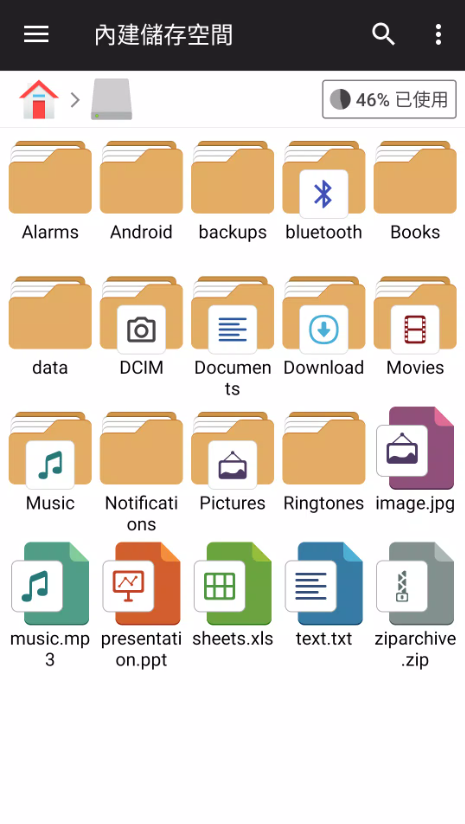
You can probably figure out what folders like Android, DCIM, Pictures, and Download are for—but if you see folders that clearly belong to an app or the system, make sure to double-check before you delete anything.
Second, don’t delete all your chat attachments or work files just to free up 500MB of space.
Third, never store important files in just one place on your phone.
For important things like photos, work documents, and ID files, make sure to back up at least one copy to the cloud or your computer, in addition to saving them on your phone.
Fourth, when moving a lot of files, use the "copy" function first. Make sure all the files are fully and correctly in the new location before you delete the original ones.
This might take a little extra time, but it’s way safer than dealing with a failed move where you can’t find your files.
Final Thoughts
After reviewing everything, in 2026, file manager apps have split into two very clear directions.
The first type is "organization tools" like Files by Google, focused on file search, categorization, and freeing up phone space—great for regular Android users.
The second type is "traditional file managers" like Solid Explorer, Total Commander, and Cx File Explorer. They don’t just organize photos—they let you manage local files, SD cards, USB drives, NAS, FTP, and cloud files all in one unified system.
If you have no idea which one to pick, I’d suggest starting with Fil
Try the Files by Google first.
If you find its features not enough, go ahead and try Cx File Explorer instead.
When you start needing things like NAS, SFTP, or dual-pane operations, it’s totally fine to look into Solid Explorer or Total Commander.
I actually don’t recommend going for the most feature-packed app right from the start. A good tool isn’t about having lots of features—it’s about once you open it, you can clearly see exactly where to tap next.
Also, file manager apps are different from basic apps like weather or note-taking apps. They need access to your phone’s sensitive storage permissions. So when downloading, always use Google Play, the App Store, or the developer’s official channel. Never hand over all your phone’s files to an untrusted app just for a so-called "Pro cracked version."
As long as you download from a reliable source, set up regular folder organization, and get in the habit of backing up, you won’t need to spend time cleaning your phone every day. Pick a file manager app that feels right for you, spend 10 minutes organizing every once in a while, and those hard-to-find PDFs, photos, music, and downloads on your phone won’t be a mess anymore.