
When getting a new phone, the most annoying part isn’t inserting the SIM card—it’s staring at the tens (or even hundreds) of GB of photos, contacts, work documents, chat logs, and various apps on your old phone, and thinking, “Is there any way to move all of this over to my new phone completely?”
If your new phone is a Xiaomi or REDMI, then Xiaomi Switch is definitely your go-to tool.
Its purpose is straightforward: it transfers data from your old phone to your new Xiaomi, and it doesn’t just work between Xiaomi phones. The official version now supports data migration from other Android devices, and even iPhones, to Xiaomi phones. The two devices can transfer directly over short-range wireless, no need to upload everything to the cloud first then download it—so for dozens of GB of photos and videos, it’s way more convenient than manually moving files folder by folder.
However, when actually using the switch tool, I’m not a big fan of slogans like “One-click full clone” — because different brands, different Android versions, and even cross-system transfers (Android to iPhone, iPhone to Android) all have system permission and app data sandbox limits. Photos will probably all transfer successfully, but banking apps will definitely need re-verification; games may not sync their login status after being reinstalled; and chat apps like LINE, WhatsApp, and WeChat also can’t be fully relied on Xiaomi Switch to handle.
So this article isn’t just going to show you which buttons to press—it’s also going to sort out exactly what Xiaomi Switch can actually transfer, what data you need to back up separately, and common pitfalls to watch out for when switching between HyperOS and MIUI.
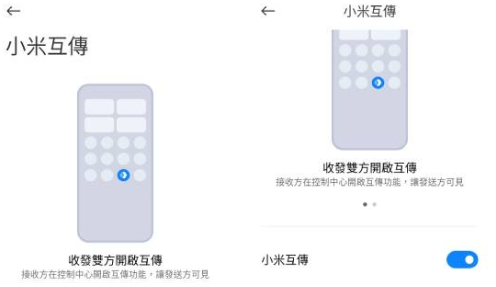
I. Xiaomi Switch App & Feature Overview
A. Official "Xiaomi Switch" Tool Introduction
Xiaomi Switch used to be called Mi Mover by many people, but now most Chinese systems just show “Xiaomi Switch” — it’s essentially a data migration tool developed by Xiaomi.
Some Xiaomi phones don’t need to download it separately; you can access it directly through:
Settings → About Phone → Xiaomi Switch
That’s where you’ll find the entry. The location might vary a little across different HyperOS versions, but you can also directly search for “Xiaomi Switch” at the top of the Settings page.
The official Xiaomi Switch App is still available on China mainland’s Xiaomi App Store, updated to version 4.5.7.5 as of August 2026. The officially listed migratable items include photos, contacts, SMS, call logs, audio and video, documents, some system settings, third-party apps, and some app data.
This is also its biggest difference from regular “file transfer apps”.
For example, ShareMe is more about:
“I want to send these 20 photos to another phone.”
But Xiaomi Switch is more like:
“My old phone is retiring, I want to move all my personal data directly to my new phone.”
B. Cross-System Switch Support for Android & iOS
Now Xiaomi’s official documentation clearly states that Xiaomi Switch can migrate data from:
Xiaomi → Xiaomi
Other Android → Xiaomi
iPhone → Xiaomi
for data migration.
However, the data completeness varies a lot between these three scenarios.
Transferring from Xiaomi to Xiaomi is usually the most complete, since the home screen, system settings, and Xiaomi’s own services align better.
For Android phones from brands like Samsung, OPPO, vivo, and Huawei switching to Xiaomi, photos, videos, documents, contacts, and regular apps usually transfer well, but the original brand’s exclusive features and some private app data may not migrate over.
Switching from iPhone to Xiaomi has the most limitations, since iOS and Android are two completely different operating systems.
So when you see “iOS support”, you need to understand it means “you can transfer some important data over”, not that you can copy your entire iPhone’s data 100% to an Android system.
II. Pre-Switch Preparation
II. Key Pre-Switch Checks & Notes
A. Checking System Versions and Storage Space for Your Old & New Phones
Before you start the data transfer process, I always make sure to check two key things first to avoid any issues down the line.
The first is system updates. If your old phone is running an outdated version of MIUI or Android, while your new phone is on the latest HyperOS, the data format difference between the two can be pretty big—and this is one of the most common reasons why transfers get interrupted or go wrong. This aligns with Xiaomi’s official recommendation for fixing transfer issues: update both phones to the latest system version first, then try transferring again.
The second is storage space. Let’s say your old phone has used up 180GB, and your new phone has 256GB of storage—on the surface, that seems like enough. But don’t forget your new phone itself takes up extra space for its system, pre-installed apps, and cached files. I recommend going to your old phone’s Settings → Storage to check the actual usage, then delete large videos you don’t need to transfer, redundant files in the Downloads folder, old APK installers, and more ahead of time. Switching phones is like decluttering—you don’t have to bring everything over exactly as is. It’s also a great chance to give your phone a proper spring clean.
B. Battery, Network Environment & Backup Tips
Xiaomi’s official recommendation right now is to keep at least 30% battery on both phones before switching, and make sure Wi-Fi and Bluetooth are turned on. One important note: Xiaomi Switch mainly uses local connection tech like Wi-Fi Direct to transfer data—it doesn’t use your mobile network at all, so even transferring dozens of GBs won’t eat up your cellular data.
But if you’re transferring a lot of data, I’d be extra careful: it’s best to keep both phones charged to 70% or more, or even plug them into power while transferring, to avoid interruptions from low battery. Also, don’t play games or update other systems mid-transfer—let your phones focus on the task at hand for a smoother process.
Even if the Xiaomi Switch process is super smooth, I still recommend backing up your important data twice over first—especially these:
Photos
Work documents
LINE chat history
WhatsApp chat history
Authenticator apps
Banking-related apps
Electronic tickets Don’t put all your hopes on just one transfer. Having a backup is always safer.
III. Step-by-Step Process for Switching from an Old Xiaomi Phone to a New One
A. Launching 'I’m New Phone / Old Phone' on Both Devices
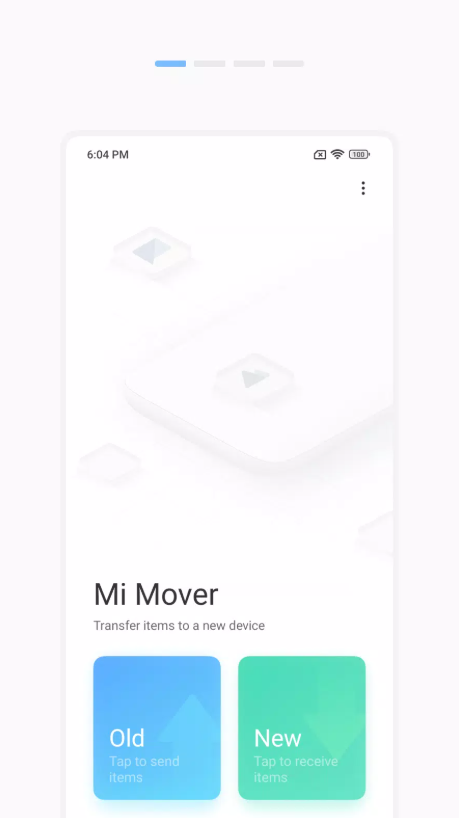
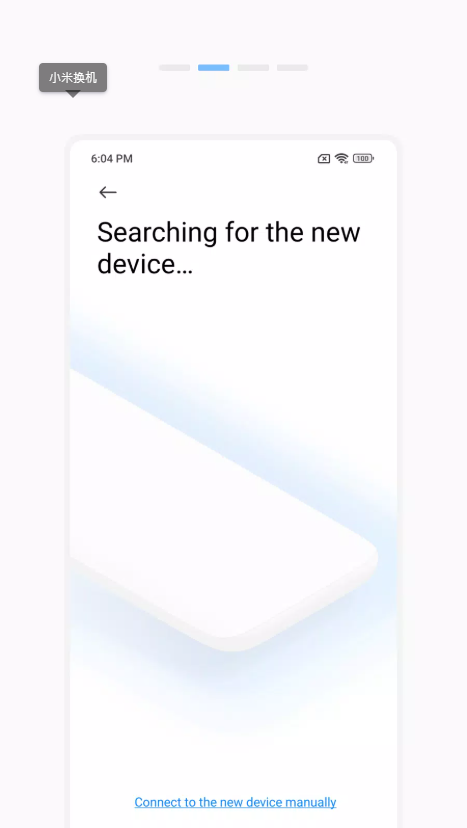
If both your old and new phones are Xiaomi, this is the easiest part. On your new phone, open Xiaomi Switch and select 'New Phone' (or an option like 'I’m the New Phone' on the screen). Do the same on your old phone: open Xiaomi Switch and select 'Old Phone'. The system will start searching for nearby devices. When you find your new phone, tap to pair—just make sure you pick the right device name before moving on to the data selection screen.
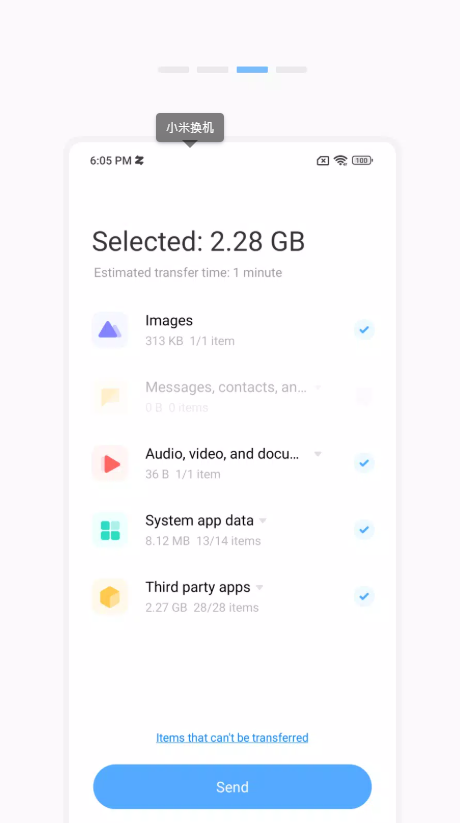
You’ll then see the categories of data you can transfer—they usually include:
Pictures
Videos
Music files
Documents
Contacts
SMS messages
Call logs
System data
Third-party apps, and more. A quick note: don’t just hit 'Select All' right away. Check the total data size first. For example, if you’re transferring 120GB of data, make sure your new phone has enough free space first.
B. Setting Up a Hotspot or Connecting to the Same Wi-Fi & Pairing via QR Code
The pairing screen might look a little different depending on the Xiaomi Switch version: some versions search for nearby devices automatically, some set up a Wi-Fi Direct connection between the two phones, and others use a hotspot name or QR code to help pair. The manual QR code pairing that was common in earlier versions is still an easy-to-use option now.
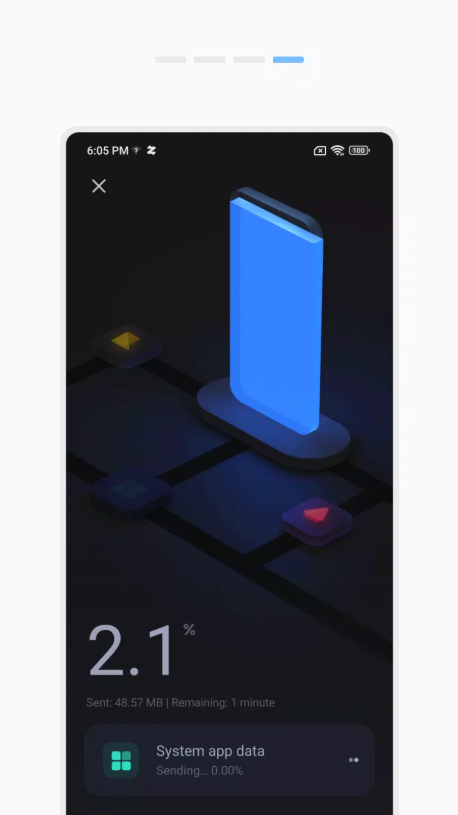
The most important point here: You definitely need Wi-Fi turned on, but you don’t have to connect to the external internet. Xiaomi Switch transfers data directly between the two phones, so it doesn’t use external network at all. Once the transfer starts, it’s best to leave both phones on a table, close to each other, and keep their screens on. Don’t take your old phone out to answer calls, and don’t have your new phone download a 10+ GB game at the same time—when dealing with big data transfers, letting your phones focus is key.
IV. Switching from Other Android Brands to a Xiaomi Phone
A. Transferring Data from Samsung, OPPO, Huawei & Other Android Models
If your old phone is an Android from brands like Samsung, OPPO, vivo, realme, OnePlus, Huawei, etc., Xiaomi Switch works just as well. On your new Xiaomi phone, select 'New Phone', then on your old Android, install or open the Xiaomi Switch app, follow the permission prompts on the screen step by step, and you’ll be ready to pair and transfer data.
Items requiring permissions include: Photos
、photos, videos, files, contacts, call logs, SMS messages, and the necessary permissions to connect to nearby devices and storage.
Once the setup is done, you can pair and connect the two phones.
The success rate of cross-brand Android phone data transfer is actually quite high.
However, the real issues usually come from the unique data that each brand keeps exclusive.
For example, Samsung Notes, Secure Folder, OPPO Private Safe, or Huawei's proprietary notes – don't expect these to stay exactly where they are when you switch to a Xiaomi phone.
B. Complete Data Transfer Strategy for Apps, Contacts, and Photos
If your old phone is another Android brand, I'd recommend using the "3-Layer Transfer Method".
Layer 1: Use the "Xiaomi Switch" tool to move local data like photos, videos, files, SMS, and call logs.
Layer 2: Use Google Account sync to restore contacts, calendars, part of your app list, and Android backup files.
Layer 3: You’ll need to manually handle special apps, such as LINE, WhatsApp, banking apps, authenticators, games, company VPNs, and work-specific apps.
This layered approach is more reliable than relying solely on one tool.
Apps can be re-downloaded, so the most important thing is the personal data inside the apps.
V. Data Transfer from iPhone to Xiaomi Phone
A. Cross-System Data Transfer from iOS to Xiaomi
Switching from an iPhone to a Xiaomi is a bit more complicated than switching between Androids, but it’s much smoother than it used to be.
The official "Xiaomi Switch" tool now supports using an iPhone as the old device, but the data you can transfer is still limited by your iOS version, iPhone model, and data type.
Another official method that has been around for a long time is using Google Account sync.
For example, install Google Drive or other Google services on your iPhone to sync contacts, calendars, and photos to your Google Account.
When you get your new Xiaomi phone, just sign in with the same Google Account to restore your data – this method is also officially recommended for switching from iOS to Android.
I’d suggest combining these two methods instead of choosing just one.
That means use Xiaomi Switch for local content, and use Google Account for data that’s already synced across platforms – this will give you better results.
B. Key Points for Transferring Chat Logs, Photos, and Files
When switching from iPhone to Android, one of the most common misunderstandings is about transferring chat logs.
Chat apps like LINE, WhatsApp, and WeChat have their own separate databases and security systems. Just moving the app icon over won’t automatically keep all your chat history intact.
So before switching, make sure to open your chat apps and check their official features, like chat backup, cross-system transfer, QR code-based transfer, or cloud backup, etc.
Transferring photos is much simpler. You can use Xiaomi Switch, Google Photos, Google Drive, or even a computer as a middle step – and don’t forget about files in iCloud Drive!
Many iPhone users think "if all photos are transferred, all data is done", only to realize two weeks later that an important PDF file is still in iCloud and hasn’t been moved over.
VI. Types and Scope of Transferable Data
A. Contacts, SMS, and Call Logs
According to Xiaomi’s current official description of the "Xiaomi Switch" tool, the core data it can handle includes contacts, SMS, call logs, photos, videos, audio, and general files – these are the most valuable data points when switching phones.
But for cross-system transfers, there are additional limitations. For example, iPhone iMessages work differently from Android SMS, so don’t expect all your messages to appear exactly the same in your Android messaging app.
So my general rule is: You can expect more when switching within the same system, but be more conservative when transferring across systems.
B. Apps, Desktop Layout, Files, and Multimedia Content
When switching from one Xiaomi phone to another, the transferable content is usually more complete than switching from another brand. Some system settings, apps, and even desktop configuration data can be moved over together.
But even if both phones are Xiaomi, that doesn’t mean third-party apps
All your data can be fully copied over successfully.
Android systems inherently limit apps from accessing each other's private data—this is a basic security mechanism.
Data from encrypted apps, banking apps, corporate MDM systems, dual-app clones, and some game data are especially prone to transfer failures.
Xiaomi officials have explicitly stated that data from system cloning features and some dual-app clones can’t be transferred normally via the Xiaomi Switch tool—this is a normal system limitation.
VII. Using Xiaomi Cloud Service and Google Backup to Assist with Device Switching
A. Use Xiaomi Cloud Backup & Restore to Speed Up Switching
If your old phone is also a Xiaomi, I won’t rely solely on the Xiaomi Switch tool— I’ll always add an extra layer of security: Xiaomi Cloud Service. You can check the list of content currently available for sync or backup via the path on your phone: Settings → Xiaomi Account → Cloud Service.
Things like your home screen app layout, some system settings, and contacts can act as a backup safety net; once your new phone logs in with the same Xiaomi account, you can restore home screen-related data using the cloud backup.
But one thing to always remember: the local direct transfer of Xiaomi Switch and Xiaomi Cloud Service are two completely different mechanisms. The former transfers data directly between two phones, while the latter stores data on the cloud first before syncing to your new device. Using both together will naturally significantly boost the transfer’s fault tolerance.
B. Pair with Google Account to Sync Apps & Contacts
International versions of Xiaomi and Redmi phones usually come with Google-related services pre-installed. If you’re used to storing contacts in your Google account instead of on your SIM card or phone memory, you won’t need to transfer almost any contacts when switching devices—just log into the same Google account on your new phone, and your contacts will sync automatically.
Additionally, your Google account can help restore these things: some apps
Wi-Fi-related settings
call or device backup info
Google Calendar
Google Photos.
So I always recommend not storing all your data only on your phone’s local storage—you’ll realize on your device switching day that doing regular syncing saves so much time!
VIII. Common Mistakes & Troubleshooting
A. Fixing Connection Failures & Stuck Transfers
If the Xiaomi Switch transfer gets stuck, don’t rush to restart everything right away. If it keeps hanging at the same percentage every time, there’s likely an issue with a specific app or file—official advice says to split the data you want to transfer into batches and send them one by one.
For example, first transfer only contacts, then after that works, transfer photos, and finally, third-party apps.
You can also try these steps in order: move the two phones closer together
turn off your VPN
restart Wi-Fi
restart Bluetooth
restart the Xiaomi Switch app
restart both phones.
If transferring 100GB of data at once keeps failing, I’d instead split photos, videos, and apps into two separate batches to transfer.
B. Fixing Issues Like Insufficient Space & App Crashes
If you run into an insufficient space issue on your new phone, the fix is actually super simple: don’t try to select all the data at once.
For example, videos you’ve already watched once, APK installers, and Telegram cache files in your Downloads folder—there’s no need to go through the trouble of moving these to your new phone.
If the Xiaomi Switch app itself keeps crashing, try these steps first: update your system
update the Xiaomi Switch app
free up enough space on your phone
restart your phone.
If it still doesn’t work, then consider splitting different types of data into batches to transfer. If a specific app keeps causing an error whenever you try to transfer it, just skip it—installing it fresh from Google Play on your new phone is usually much faster than forcing the transfer.
IX. HyperOS vs. MIUI: Real-World Device Switching Tests & Differences
A. Differences in Device Switching Workflows Between Old & New Systems
When switching from the old MIUI system to the latest HyperOS, the core logic of the two systems’ device-switching tools hasn’t changed much at all— the steps remain the same: select “Send” on your old phone, select “Receive” on your new phone, pair the two devices, choose the data types you want to transfer, and you can start sending.
The biggest differences actually lie in where the features are accessed, permission management, and the growing completeness of cross-device connectivity.
The path to open Xiaomi Switch on older MIUI versions is usually “Settings → About Phone → Xiaomi Switch”; HyperOS is a bit different—on some models, it might be in the Settings search bar, under Backup & Restore, or in the new device section.
In the setup process, you can easily find the relevant feature right away.
Go to the corresponding entry for the Switch Phone feature.
If the screen shown in the tutorial steps doesn't match what's on your phone, that doesn't mean your phone is missing a feature.
The most straightforward way is to open Settings and search for "Switch Phone" directly—this usually finds the feature entry the fastest.
B. Stability and Success Rate Across Different Versions
Data transfer between HyperOS systems of the same generation is usually the most stable, hassle-free, and has the lowest error rate.
For example, if you have two recently launched Xiaomi phones, their system settings and app environments are very similar, so there will naturally be far fewer data conflicts during transfer.
Conversely, if your old phone is still running a MIUI system from several years ago, while your new phone is already on the latest HyperOS, this scenario is the most likely to run into incompatibility issues with app data or system settings.
This is why I've been emphasizing this all along:
Update your system before switching phones.
In addition, HyperOS now has more cross-device transfer capabilities with Apple devices. For example, the new version of "Xiaomi Share" can transfer photos, videos, files, etc., between eligible HyperOS devices and iPhones, but this is for everyday cross-device sharing—not to be confused with full phone data transfer.
X. Xiaomi PC Switch Assistant: Data Migration for Computers
A. One-Click Switching Process from Old PC to New PC
What many people don't know is that Xiaomi not only has a phone-specific switching tool, but also an official tool for handling PC data migration: Xiaomi PC Switch Assistant.
This tool is specifically for data migration between Windows PCs—it's not for moving phone content to a computer.
The currently official usage requirements are:
Old PC must support 64-bit Windows 10 or Windows 11.
New PC must be a Xiaomi laptop with 64-bit Windows 11.
Old PC must also support 5GHz Wi-Fi.
The basic operation logic is similar to phone switching.
Just install and launch the PC Switch Assistant on both PCs, select "Old PC" and "New PC", complete device search and pairing, then check the content you need to migrate.
Official tests show that this tool has an average maximum transfer speed of about 90MB/s, but the actual speed depends on your Wi-Fi environment, hard drive condition, and device performance.
B. Data Migration for Files, Browsers, and Chat Apps
Many people think Xiaomi PC Switch Assistant can only migrate "file folders", but that's not the case.
Currently, official-announced migratable content includes:
Photos
Videos
General files
Chrome browser data
Edge browser data
Firefox browser data
QQ browser data
WeChat chat data
QQ chat data
And some system settings
You can also migrate data from some related apps.
Of course, some system directories are not supported—for example, system paths like the Windows folder or Program Files cannot be copied directly as a whole to use as a brand new Windows system.
So this tool is more like "helping you move your work environment" rather than cloning your old hard drive entirely to the new PC.
In addition, if you're using a Xiaomi laptop sold in a different region in Taiwan, we recommend first checking the actual compatibility between this model and the official PC Switch Assistant—don't assume all Windows PCs can use it fully just from the name.
XI. Data Security and Privacy Protection
A. Encryption and Local Connection Mechanism During Transfer
One big advantage of Xiaomi's Switch tools is that the main migration process is done via local transfer between devices—your data doesn't need to go through an external server.
Officially, phone switch data uses peer-to-peer local transfer—you don't have to upload all the data you want to migrate to a server first; also, Xiaomi's privacy policy for Switch tools states that they won't store the transferred data that users actually select to migrate.
For users whose photos or videos are often dozens of GB large, this not only transfers much faster, but also skips the hassle of "uploading to the cloud first then downloading".
However, make sure to check the permission requirements carefully when using it.
For example, if you want to migrate SMS messages, you need SMS reading permission; if you want to migrate contacts, you need contact reading permission; if you want to move photos, you need photo access permission. These permissions are reasonable in themselves, but the key is whether what you downloaded is
This is the official Xiaomi Switch tool.
B. Tips for Clearing Old Phone Data After Switching
After completing the switch, don’t rush to factory reset your old phone the second you see the "done" screen.
Personally, I keep my old phone for at least 1 to 3 days as a habit.
Items to check include:
Total number of photos is complete
Are any contacts missing
All important chat content has been transferred
Banking apps are working properly
The Authenticator for account verification is intact
All work files are in place
Recordings and notes have been transferred
Downloaded files are on the new device
Once everything checks out, you can handle your old phone. If you plan to sell, give away, or recycle it, make sure to log out first:
Xiaomi account
Google account
Banking service-related accounts
After handling social media accounts, be sure to confirm that eSIM transfer was successful. Next, you need to do: Factory reset or wipe all data. If you’re giving the old phone to someone else, this step is non-negotiable.
12. Optimization Settings for Your New Phone
A. Check for Missing Data and Re-Log into Accounts
After finishing the Xiaomi Switch process, my first step isn’t to shut off my old phone right away. Instead, I take both phones side by side to check. First, I confirm the number of contacts is correct. Then I spot-check photos from the last three months to make sure none are missing. After that, I open a few important PDFs to ensure they load properly. Next, I go through these apps one by one: LINE, WhatsApp, Email, banking apps, Authenticator, cloud storage, games, to make sure all work. Lots of people think "all data transferred successfully" just because app icons are on the home screen, but when they open them, they find over half need to log in again. That’s totally normal—especially for financial and security apps, copying login credentials directly to another phone isn’t right anyway, it’s to protect your account.
B. Update Apps & Adjust Notification & Permission Settings
The final step of switching is organizing your new phone’s settings. First, go to Google Play Store and the system’s built-in app update page to upgrade all apps to the latest version, so you have full features and security. Next, don’t rush to turn on notification permissions for all apps. When switching, you might accidentally bring over years of junk notification settings from your old phone too. I adjust each app’s settings individually: which can send notifications, which run in the background, which use precise location, which access the gallery, which need automatic startup. After this adjustment, your new phone will actually feel "brand new"—otherwise you’re just copying your old phone’s messy settings to a faster new device.
Let’s Summarize
In actual use, I think the 2026 Xiaomi Switch is already a super mature tool for moving phone data. Its biggest strength isn’t lots of features—it’s how easy it is to use. You pick "Old Phone" on your old device, "New Phone" on your new device, pair the two, pick which data to transfer, and the basics are done. If switching between Xiaomi phones, this is my top pick. If switching from other Android brands like Samsung, OPPO, vivo, Huawei, Xiaomi Switch works well too, but pair it with Google account sync backups and handle important app data migration separately. If switching from iPhone, don’t expect 100% data copy—photos, contacts, and regular files are easy to transfer, but LINE, WhatsApp, banking apps, iCloud files, and personal app data need to use their official migration methods. Don’t overthink HyperOS vs MIUI names—success usually depends on system version gaps, storage space, and having a full backup before switching. Also, don’t mix up these three tools: Xiaomi Switch is for full phone moves. Xiaomi Share is for quick small-file transfers between phones, tablets, and iPhones. Xiaomi PC Switch Assistant is for moving data from an old Windows PC to a new Xiaomi laptop. Each fits a different use case.
If you just got a new Xiaomi or REDMI phone, here’s the workflow I’d absolutely suggest: First, make a full backup of your old phone. Update both devices’ systems to the latest version. Use Xiaomi Switch to transfer your core data, then fill in the rest with Xiaomi Cloud and your Google account. Finally, verify one by one that chat history, banking apps, and authenticators are all working correctly. Once you’ve confirmed all your important stuff is safely on the new phone, go ahead and format the old one. This takes about 30 more minutes than the “one-click wipe and done” method, but when compared to accidentally losing years of photos or work data, that half hour is totally worth it.