
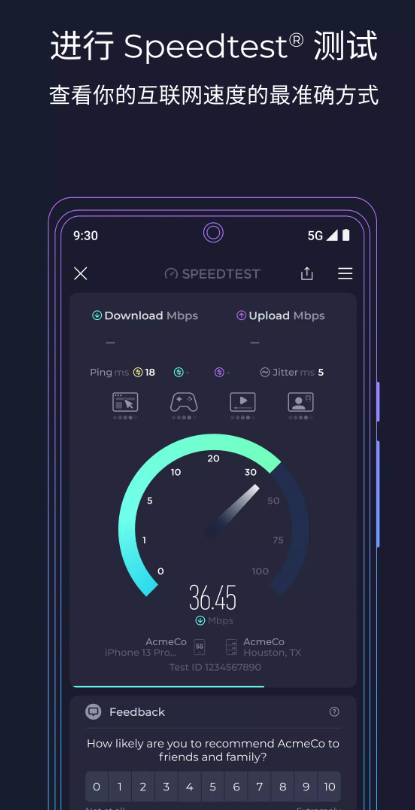
You subscribed to a 500Mbps fiber plan at home, but why does your phone only show 150Mbps? The telecom company claims 5G is super fast, yet your video keeps buffering nonstop just because you’re in your room? Your game says it has a 300Mbps download speed, but your character still teleports and lags? If you only look at “how fast the internet is”, it’s super easy to get the troubleshooting direction wrong. The most practical part about Speedtest - Speed Test is that it breaks down metrics like download, upload, ping, and jitter, so you can clearly see where the problem is.
Speedtest by Ookla is probably one of the most well-known internet speed test tools right now. Its biggest feature isn’t about being professional at all—it’s super simple: just open the app, tap “GO”, and you’ll get your current network status in less than 30 seconds. It works with home fiber, Wi-Fi, 4G, 5G, office networks, hotel public Wi-Fi, and even your phone’s hotspot.
But when I review network tools, the last thing I want to see is someone making a conclusion after just one test. For example, someone saying “my 500M fiber only pulled 300M, so the ISP stole bandwidth” — that’s probably unfair to the ISP! Are you on a 2.4GHz Wi-Fi or using an Ethernet cable? Does your router support Gigabit specs? Was someone watching a 4K video at home while you tested? Which test server location did you pick? All these factors will affect the final result.
So this article will not only teach you how to download Speedtest - Speed Test, but also, from a real-world usage perspective, explain how to read speed test results, why your Wi-Fi might not hit the subscribed speed, how to test 5G accurately, and when you should actually call your telecom company — all organized clearly for you.
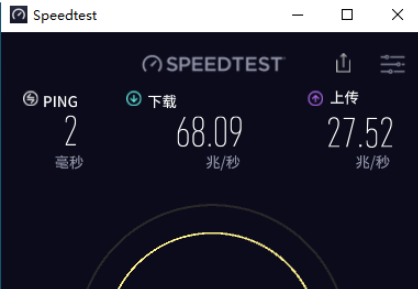
Speedtest is a network performance testing service developed by Ookla, and its main purpose is to measure how well your phone or computer connects to the test server.
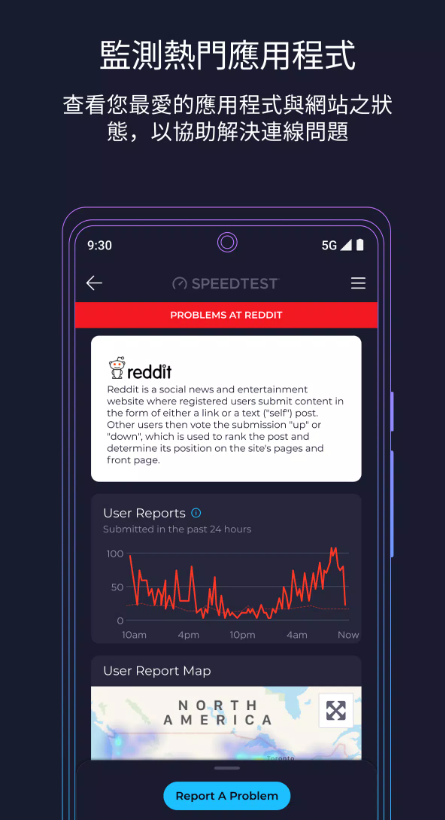
The mobile version now not only has the traditional speed test function, but also integrates features like mobile network coverage maps, video testing, historical speed test records, and Downdetector network service status checks. The official Android version has been downloaded over 100 million times on Google Play, making it a very mature and widely used speed test tool.
When you use it, the common metrics you’ll see in speed tests include:
Download: Download Speed
Upload: Upload Speed
Ping: Network Latency
Jitter: Jitter
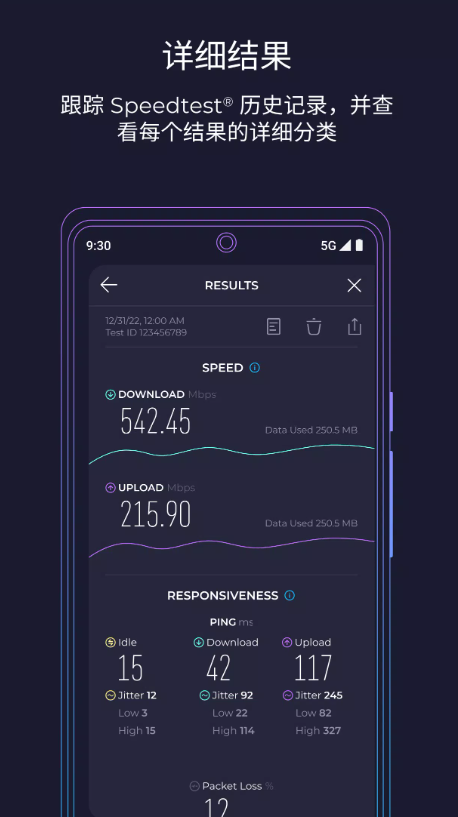
Some test results will also show metrics like packet loss rate, Idle Ping, Download Ping, and Upload Ping.
This is actually important because network quality these days isn’t just about how big the Mbps number is anymore.
Speedtest supports a huge range of platforms.
Common platforms you can use it on include: iPhone
iPad
Android phones and tablets
Windows PC
Mac
Apple TV
Web browser
Windows users can still download Speedtest by Ookla from the Microsoft Store, and macOS has its own standalone Speedtest desktop app.
The five things I use it for most often are: When I set up a new broadband plan, to confirm if the actual speed matches what I signed up for; To compare Wi-Fi performance before and after replacing a router; To test which room in my house has the best signal; To compare real-world performance between 4G and 5G; When my internet slows down suddenly, to tell if the problem is with my equipment or my ISP.
For iPhone and iPad users, search for “Speedtest” in the App Store to find the official speed test tool, tap “Get” and install it to start using it.
When users open the App Store on their iPhone or iPad, and type keywords in the search bar, there are two common
Search terms to use: the first is Speedtest, the second is Speedtest - Speed Test. Make sure the developer is Ookla. Once you find the correct app, tap the "Get" button to finish installation.
As of August 2026, the Speedtest mobile version available on Taiwan's App Store is the 7.x series, with an app size of about 160MB. It is compatible with iPhone, iPad, and Apple TV devices. The minimum system requirement is iOS/iPadOS 15 or above, and it already supports Traditional Chinese interface officially—you don't need extra settings to use it easily.
After installation, you can directly open the basic speed test without registering an account. The process is super easy.
When you launch the app for the first time, the system may ask for location access: if you want to connect to nearby test servers, view the mobile network map, or check your local carrier's network coverage, granting location permission is more useful. But if you just want to test your home Wi-Fi speed, you can decide whether to authorize based on your own needs.
A. Download and Installation Steps for Android
Android users can open the Google Play Store and search for the Speedtest app.
The official app has two names: "Speedtest by Ookla" or "Speedtest - Speed Test", and the corresponding package name is org.zwanoo.android.speedtest.
So far, this app has been downloaded over 100 million times on Google Play, with a stable rating of around 4.5 stars. The official team also updates it regularly to improve the user experience.
Here's a special reminder: it's not recommended to download installation files from third-party sites for so-called "Speedtest cracked versions", "ad-free APKs", or "Speedtest Premium cracked versions".
Speed test tools need access to the internet and some device information. The official Google Play version is more secure, so it's better to use the official version directly instead of risking downloading unnecessary files just to skip a few ads.
III. How to Use Speedtest Desktop and Web Versions
A. Download and Installation for Windows and Mac Desktop Versions
Windows users can directly go to the Microsoft Store and search for "Speedtest by Ookla" to download and install the desktop app.
The interface after installation is similar to the mobile version, with a prominent "GO" button in the middle—press it to start the speed test.
If you want to confirm if your home fiber is reaching the full speed you subscribed to, I actually recommend using the desktop version. It's best to connect your computer directly to the router with an Ethernet cable, because mobile Wi-Fi itself is an unstable variable that affects test results.
For example, if you subscribe to a 1Gbps fiber plan but your phone only supports older Wi-Fi standards or is connected to the 2.4GHz band, it's very normal for your phone not to reach full speed in the test.
Mac users also have their own dedicated Speedtest by Ookla desktop app, which is still available on the Mac App Store and supports Traditional Chinese interface.
B. How to Use the Speedtest Web Version
If you just want to test your internet speed once temporarily, you don't need to install an app at all—just use the Speedtest.net web version.
After entering the site, press "GO"—the browser will automatically select a nearby test server and measure ping, download speed, and upload speed in sequence.
The biggest advantage of the web version is its convenience: if you can't install software on your work computer, borrow a friend's computer for a quick test, or test Wi-Fi in a hotel, you can just open a browser and use it without installing any extra programs.
But if you need to long-term record your mobile 4G/5G speeds, use video testing, or access advanced features like mobile network maps, it's still recommended to choose the app version for more complete functions.
IV. Language and Interface Settings
A. Switching to Traditional Chinese Interface
The Speedtest mobile version already supports Traditional Chinese interface.
The Speedtest for Apple platforms currently supports over 17 languages, including Traditional Chinese, Simplified Chinese, English, Japanese, Korean, German, French, Spanish, etc.
If your iPhone shows an English interface, you can adjust the language for Speedtest separately through your iOS app language settings.
Android users can also adjust Speedtest's language in their device settings.
For devices of this version, you can adjust the language settings specifically for Speedtest via the path Settings → System Settings → Language → App Languages, without changing your phone’s overall default language.
Menu names may vary slightly between different Android brands, so just adjust according to the menu names on your specific device when operating.
This tool doesn’t have a lot of interface text, so even the English version is easy to understand. However, the Traditional Chinese interface is more user-friendly for beginners who are just learning about Ping and Jitter.
B. Explanation of Test Result Fields
After the test completes, the most noticeable numbers are usually your Download and Upload speeds.
But nowadays, Speedtest’s result page is way more comprehensive than it was in earlier versions.
In addition to Download and Upload speeds, you might also see these fields:
Idle Ping
Download Ping
Upload Ping
Jitter
Packet Loss
ISP
Test Server
Connection Type
Idle Ping refers to the basic latency when there’s no large amount of data being transmitted over the network.
Download Ping is the latency value measured under download pressure.
Upload Ping is the latency measured when you’re uploading a large amount of data.
For example, if your family members are playing online games and experiencing lag while you’re downloading something, these “latency values under load” are actually more useful than just looking at your download speed.
V. Analysis of the Three Key Metrics: Download, Upload, and Latency
A. What the Download Speed Metric Means
Download speed is usually measured in Mbps.
Common speed examples include:
100Mbps
300Mbps
500Mbps
1Gbps
This number represents how well your network can retrieve data from servers.
Most activities like watching YouTube, Netflix, downloading mobile games, browsing web images, updating apps, and more rely on download bandwidth.
Here’s an important note:
Mbps is NOT the same as MB/s!
Since 8 bits equal roughly 1 Byte, here’s the conversion:
100Mbps ≈ 12.5MB/s
500Mbps ≈ 62.5MB/s
1Gbps ≈ 125MB/s
For example, if your download speed on Steam is around 60MB per second, that’s actually almost hitting the typical upper limit for a 500Mbps plan.
B. What the Upload Speed Metric Means
Upload speed, on the other hand, is your network’s ability to send data out.
Common scenarios that require upload bandwidth include:
Uploading files to Google Drive
Uploading videos to YouTube
Live streaming
Video conferencing
Remote NAS backups
Sending large attachments
These scenarios all depend heavily on your upload speed.
People who only care about their Netflix streaming experience might not pay much attention to upload speed, but if you work with transferring a lot of content, the difference between a 500M download/50M upload plan and a 500M/500M plan is huge.
Streamers, YouTubers, or anyone who regularly backs up cloud data should definitely not base their broadband choice only on download speed.
C. Ping Latency and Jitter Analysis
Ping is usually measured in ms, which stands for milliseconds.
The rule here is simple:
The lower the number, the better your network performance.
5ms is considered excellent.
20ms is still good.
50ms is acceptable for general use.
If it goes over 100ms, you’ll start noticing delays in online games or video calls.
Jitter measures how consistent your latency is.
For example, imagine your average Ping is 20ms, but it drops to 10ms one second and jumps back to 30ms the next. That’s a lot of jitter, which will cause stutters and delays in games or calls.
Even if your ping spikes up to 100ms, online game characters might still jump around randomly, and calls could cut in and out. So here’s the takeaway: Low Ping + Low Jitter are what give you a smooth, real-time network experience.
VI. Home Broadband & Wi-Fi Speed Test Practice
A. Testing Home Fiber/ADSL Broadband Quality
If you want to check if your ISP (Internet Service Provider) is delivering speeds close to what you signed up for, don’t just take one test on your phone sitting in the living room and call it a day.
A more reliable test method is:
First, connect your computer directly to your router or optical fiber equipment using a Gigabit Ethernet cable (or better).
Close any VPN apps.
Pause cloud sync services.
Turn off Steam, BitTorrent, and other large download tasks.
Make sure no other devices are hogging bandwidth.
Then run Speedtest two or three times in a row.
It’s also a good idea to test with a nearby server to cross-verify, which will make your results more accurate.
If you’re on a 1000Mbps plan, the results from a wired test will be much more reliable.
If your speed tests hover around only 90Mbps for a long time, don’t blame your ISP right away. Instead, check these things first:
Is your network card only 100Mbps spec?
Is your router’s LAN port also 100Mbps?
Or could your Ethernet cable or its connectors be faulty?
A lot of users think their ISP is only giving them 100Mbps, but in most of these cases, it’s due to old router hardware limiting them to 100Mbps.
B. Check Wi-Fi Router and Signal Quality
Wi-Fi testing works differently than wired testing, so you need to judge it differently. It’s best to test in three stages:
First Round of Tests:
Run tests right next to your router.
Second Round of Tests:
Move to a room inside your home and test.
Third Round of Tests:
Go to the spot where you usually have the most network issues and test.
If you get 500Mbps next to the router but only 70Mbps in the room, the problem is probably not your ISP.
The usual culprits are:
Distance
Wall obstructions
Floor differences
Wireless signal interference
Router placement
2.4GHz / 5GHz band selection
Mesh node setup
The 2.4GHz band has better wall penetration, but its transfer speed is slower.
The 5GHz band is faster, but wall penetration is much weaker.
The 6GHz band is even faster, but its range is more dependent on obstacles, and speed drops sharply the farther you go.
When testing Wi-Fi, don’t just focus on “how many Mbps you get at a normal spot.” Instead, compare the speed differences between different locations—this is the key to judging Wi-Fi quality.
VII. Mobile Network & 5G Speed Test Guide
A. 4G/5G Mobile Data Testing Steps
Before testing 4G or 5G mobile data, the most important thing you need to do is:
Turn off Wi-Fi.
This seems like a super basic step, but a lot of people forget to do it before testing, which makes their results inaccurate.
Make sure your phone’s status bar shows 4G, LTE, or 5G signal, then open the Speedtest app and hit the GO button to start testing.
Once the test is done, make sure to check and note these key values:
Download speed
Upload speed
Ping (latency)
Jitter
Then move to other locations and test to see how speed performs in different spots.
When I test 5G, I usually test at least these three spots:
Indoor near a window
Deep inside the house
Outdoor area
three different locations
...because 5G signal performance depends heavily on distance to the base station, the selected frequency band, and building obstructions. The measured values can vary drastically depending on location.
B. Comparing Outdoor vs. Indoor Speed Test Results
If you get an outdoor 5G speed of 800Mbps but it drops to only 150Mbps once you’re inside a room, that doesn’t mean your 5G is a "fake signal" or underperforming—it’s normal behavior for high-band 5G signals.
High-band 5G signals experience severe attenuation when passing through walls, so big speed drops are totally normal.
You might even see the 5G icon on your phone when you’re in the room, but it could have switched to a different frequency band, changing your connection state—so naturally, your speed will differ.
Another important point many people overlook is:
Testing high-speed 5G uses a lot of data.
To measure the full potential of a high-speed connection, Speedtest sends a large amount of test data. The faster your line, the more data each test consumes.
If you don’t have an unlimited mobile plan, don’t run multiple consecutive Speedtests just to see if you hit 1Gbps—you could accidentally exceed your data cap.
VIII. Interpreting Speed Test Results and Troubleshooting Common Issues
A. Common Reasons For Lower Speeds Than Your Plan
If your test results are slower than your subscribed speed, common causes fall into these categories:
Poor Wi-Fi signal quality
Insufficient router hardware specifications
Connected Ethernet cable or network card only supports 100Mbps
Other devices downloading large files
VPN service running that affects connection speed
Test server is too busy and can’t deliver full speed
Testing device (e.g., computer) lacks enough performance for high-speed connections
Network congestion during peak hours affecting speed
ISP line issues
Don’t blame your ISP immediately. It’s better to check step by step using an elimination method.
My go-to is to test with a wired connection first to rule out Wi-Fi issues: If the wired test is normal but Wi-Fi is slow, the problem is with your router or Wi-Fi setup—just fix those parts. If the wired test is also off, switch to a different test server and run again. If the speed is still wrong after changing servers, then you can start suspecting ISP line problems.
B. How to Communicate With Your ISP Using Speed Test Results
If you need to contact your ISP to report a problem, don’t just tell support "My internet is super slow." That’s too vague—they can’t tell what’s wrong.
I always have these details ready:
Your subscribed speed
Date and time of the test
Wired or Wi-Fi connection used for testing
Screenshot of Speedtest results
Test server used
At least 2-3 test records
It’s best to run tests during both peak and off-peak hours for more accurate results.
For example, you can tell support: "I have a 500Mbps plan,
when connected directly to a Gigabit-rated router via a Cat6 Ethernet cable, ran three consecutive Speedtests at 8 PM peak hours, and got speeds between 120-140Mbps. Testing at 4 AM off-peak gives speeds around 470Mbps. This kind of test result lets technicians quickly tell if it’s just peak congestion—they won’t have to ask you repeatedly to do basic things like restart your modem right away.
This makes it easier for them to confirm if the issue is peak congestion, instead of asking if you’ve restarted your device first.
IX. Speedtest Advanced Features & Tools
A. Video Test & Streaming Quality Assessment
The mobile version of Speedtest has a "Video Test" feature. It doesn’t just measure Mbps like a regular test—it simulates real-life video streaming experiences, showing details like maximum available resolution, video load time, and buffering frequency.
Ookla still lists Video Testing as one of the core features of the mobile app. It’s actually more relevant to daily use than just looking at raw speed numbers.
For example, if you use Speedtes
If your speed test shows 100 Mbps, theoretically you should have more than enough bandwidth to stream 4K videos. But if you keep getting buffering when using the Video Test feature, that means the issue isn't necessarily about the bandwidth number itself—it could also be your router, Wi-Fi stability, or the connection quality of your video streaming service.
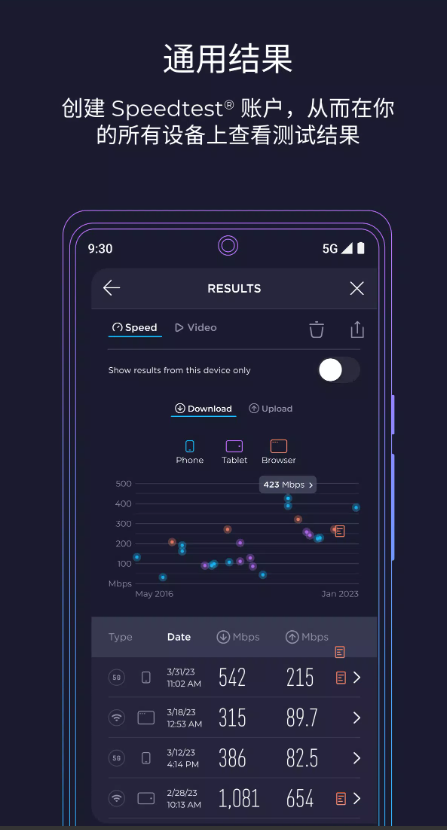
B. Historical Speed Test Records & Trend Analysis
Speedtest saves all your past speed test results. Personally, I think this feature is super helpful for figuring out if an issue is a one-time thing or something that happens regularly.
For example, if your test results over a week look like this: 500 Mbps in the morning, around 480 Mbps in the afternoon, and only 150 Mbps at night, that pattern clearly points to peak-time congestion as the cause.
On the flip side, if you consistently get around 500 Mbps all day, but only 30 Mbps when testing in your home office, you don’t need to argue with your internet provider at all—just focus on fixing the Wi-Fi in your office first.
The real value of a speed test has never been a flashy screenshot of your results—it’s in comparing the long-term trends of your numbers.
X. Speedtest Global Index & Global Speed Comparisons
A. Global Speed Rankings & Country Comparisons
Ookla also created the Speedtest Global Index, which aggregates results from millions of real users to build data on mobile and fixed broadband performance across different countries and regions.
Instead of testing from a single computer in each country, it uses data from tens of thousands of users around the world who actively run Speedtest, then calculates typical network performance using professional statistical methods.
Right now, the Global Index uses rolling-period data and updates monthly, so country rankings change over time.
When you see news saying "Country X ranks #10 globally for internet speed", don’t assume that’s a fixed number—it could shift next month.
B. Taiwan Internet Speed Reference
Based on the Speedtest Global Index data from June 2026, Taiwan’s median mobile download speed is around 171 Mbps, ranking #44 globally; its median fixed broadband download speed is around 308 Mbps, ranking #31 globally. For the same period, the median fixed broadband upload speed is around 267 Mbps, with latency at about 7 milliseconds.
These numbers are just "overall market references"—they don’t mean that if you have a 300 Mbps plan at home, you should expect to get exactly 171 or 308 Mbps as a "good enough" standard.
Your home internet performance should instead be compared to:
The speed of your subscribed plan + the capability of your actual devices
These two factors.
Also, you can’t just apply the average mobile speed across Taiwan to a single room—5G coverage quality in downtown Taipei is not going to be the same as in mountainous areas.
XI. Speedtest vs. Other Speed Test Tools
A. Differences with Tools Like Fast.com, Dr.Speed, Etc.
Personally, I don’t rely on just one speed test tool—each one works better for different situations.
Speedtest - Speed Test
Its biggest plus is that it’s the most full-featured: you can pick different test servers, view download/upload speeds, Ping, Jitter, historical records, video test results, and mobile network info. It’s perfect for when you actually need to troubleshoot a real internet issue.
Fast.com
It’s a speed test service from Netflix, and its main selling point is how simple it is—you open the website, barely need to do anything extra, and it starts testing your download speed right away; expand to see more details.
Once the test is done, you’ll see your latency and upload speed.
If your question is:
"Why is my Netflix always blurry at home?"
Then Fast.com is actually a super intuitive cross-test tool to use.
Dr.Speed
This is a dedicated connection speed test tool from Taiwan’s Chunghwa Telecom HiNet.
The official Dr.Speed supports Windows, macOS, and Linux. If you’re a HiNet user and run the test, it can even generate a more detailed diagnostic report to help you find computer or network environment issues that might be affecting your connection speed.
If you’re a HiNet FiberHome user and getting ready to report an internet issue for repair, I’d recommend:
Run a Speedtest first.
Then run a Dr.Speed test.
Save the results from both tests.
That’s way more complete than just a single screenshot from Speedtest.
B. Choose the right speed test tool for you
If you simply want to know:
"How fast is my internet right now?"
Use Speedtest.
If you want to check:
"Is there a problem with Netflix streaming?"
Do a test on Fast.com too.
If you’re dealing with:
"Chunghwa Telecom’s Fiber broadband speed is abnormal, I need to contact customer service."
Dr. Speed will be super helpful here.
For Wi-Fi issues, I actually recommend using Speedtest in different rooms and comparing the results.
No single speed test platform is 100% accurate.
The real reliable way is:
Use two tools at the same time and cross-compare the results.
For example, if Speedtest shows 50Mbps, Fast.com shows 50Mbps, and Dr. Speed’s number is close, this result is way more credible than a single test.
XII. Privacy and Security Notes
A. Data Collection Explanation for Speed Tests
Network speed tests don’t generate "no data" at all.
To complete tests and provide network analysis features, Speedtest may process IP, device, and network information. When using certain features on the mobile app, it may also involve location data.
Currently, the Taiwan App Store’s privacy label indicates that Speedtest may process location information, device identifiers, usage status data, and other types of information. Some of this information may also be used for ads, analytics, or app functions.
Google Play states that Speedtest may collect location, personal information, and other data. Some of this data may be shared with third parties; it also notes that data transmission is encrypted, and users can request data deletion.
So if you don’t need the mobile network coverage map at all, double-check your location permissions. Don’t just grant all permissions with the mindset of "it’s just a speed test".
B. Security Tips for Using Speedtest
Here are a few things I always keep in mind when using Speedtest:
First, don’t download cracked versions. The App Store, Google Play, Microsoft Store, or the official website are completely safe enough.
Second, when testing your work VPN, think about what you actually want to measure. Testing with VPN on checks the VPN connection; testing with VPN off gives results closer to your regular internet speed.
Third, watch your data usage when testing on mobile networks. The faster the speed, the more data the test usually transfers.
Fourth, don’t take a single test result as the absolute answer. The internet is a dynamic environment, and results can vary by time, server, and location.
Let’s Sum It Up
Overall, Speedtest - Speed Check remains one of the most suitable network speed test tools for both regular users and advanced enthusiasts in 2026.
Its best feature isn’t just the cool-looking speedometer—what makes it great is that from basics like Download and Upload, all the way to Ping, Jitter, latency, video testing, history logs, and mobile network info, you can actually use it to troubleshoot problems, not just to brag about "my home internet is over 1Gbps".
If it’s your first time using it, just remember three key concepts:
A high download speed means much faster streaming of online videos and file downloads.
A strong upload speed makes transferring large files, backing up to the cloud, or live streaming way smoother without hiccups.
Lower Ping and Jitter values mean more stability for gaming, video calls, or other real-time activities—less lag and stuttering.
It’s important to note that testing Wi-Fi quality and testing your ISP (Internet Service Provider) performance are two different things—never mix them up.
For example, a 100Mbps speed test from your phone in a room doesn’t mean there’s a problem with your 500Mbps fiber plan. If this happens, it’s recommended to first test with a wired connection on your computer. If the wired test shows speeds close to 500Mbps, the problem is almost always with your Wi-Fi setup.
On device or signal attenuation.
Testing 5G mobile networks works the same way.
For example, you might get a blazing-fast 800Mbps when testing by a window, but once you step inside a room, it drops to just 150Mbps. This is a super common signal drop issue with mobile networks. What you really need to care about is the trend from repeated tests at the same location and different times, not a random top speed you get once by chance.
If you actually need to report a network issue to your ISP, here's what we recommend: Save the Speedtest screenshot, the exact time you tested, your usage scenario at that moment, and the server info you connected to, then cross-test with Fast.com or your carrier’s own speed tool too.
That way, you’re not just giving subjective feedback like “I feel like the internet is slow”—you can clearly state:
Where exactly the network is slow, when it happens, and whether the problem is likely with your ISP, your Wi-Fi environment, or your own device.
That’s the real reason why Speedtest is the app worth keeping on your phone.